Instagram Workflow Automation: Build Multi-Step Automations in Inflowave (2025)
TL;DR
Inflowave's workflow builder lets you create multi-step automation sequences triggered by any Instagram action — DMs, comment keywords, landing page submissions, pipeline stage changes, or time delays. Unlike GoHighLevel workflows (built for broad multi-channel marketing) or Make.com (a generic automation connector), Inflowave workflows are designed specifically for Instagram-first businesses.
What Is Instagram Workflow Automation?
A workflow is a sequence of automated steps that runs when a specific trigger occurs. On Instagram, this typically looks like:
Trigger → Condition → Action → Action → Action
For example:
- Someone comments "PRICE" on your reel (trigger)
- Are they a new contact? (condition)
- Send them a DM with pricing (action)
- Create a pipeline card in "Proposal Sent" (action)
- Wait 24 hours — if no reply, send follow-up DM (action)
Without a workflow builder, each of these steps is manual. With Inflowave workflows, the entire sequence runs on autopilot.
GoHighLevel has a powerful workflow builder — but it's designed for email, SMS, and phone calls, not Instagram DMs as a primary channel. Make.com (formerly Integromat) can automate almost anything, but it requires API connections, error handling configurations, and ongoing maintenance. It's a tool for developers, not marketers.
How to Build a Workflow in Inflowave
Step 1: Open the Workflow Builder
- Go to Workflows in the left navigation
- Click New Workflow
- Give it a name (e.g., "Comment Trigger → Pipeline")
The workflow builder opens as a visual canvas with drag-and-drop nodes.
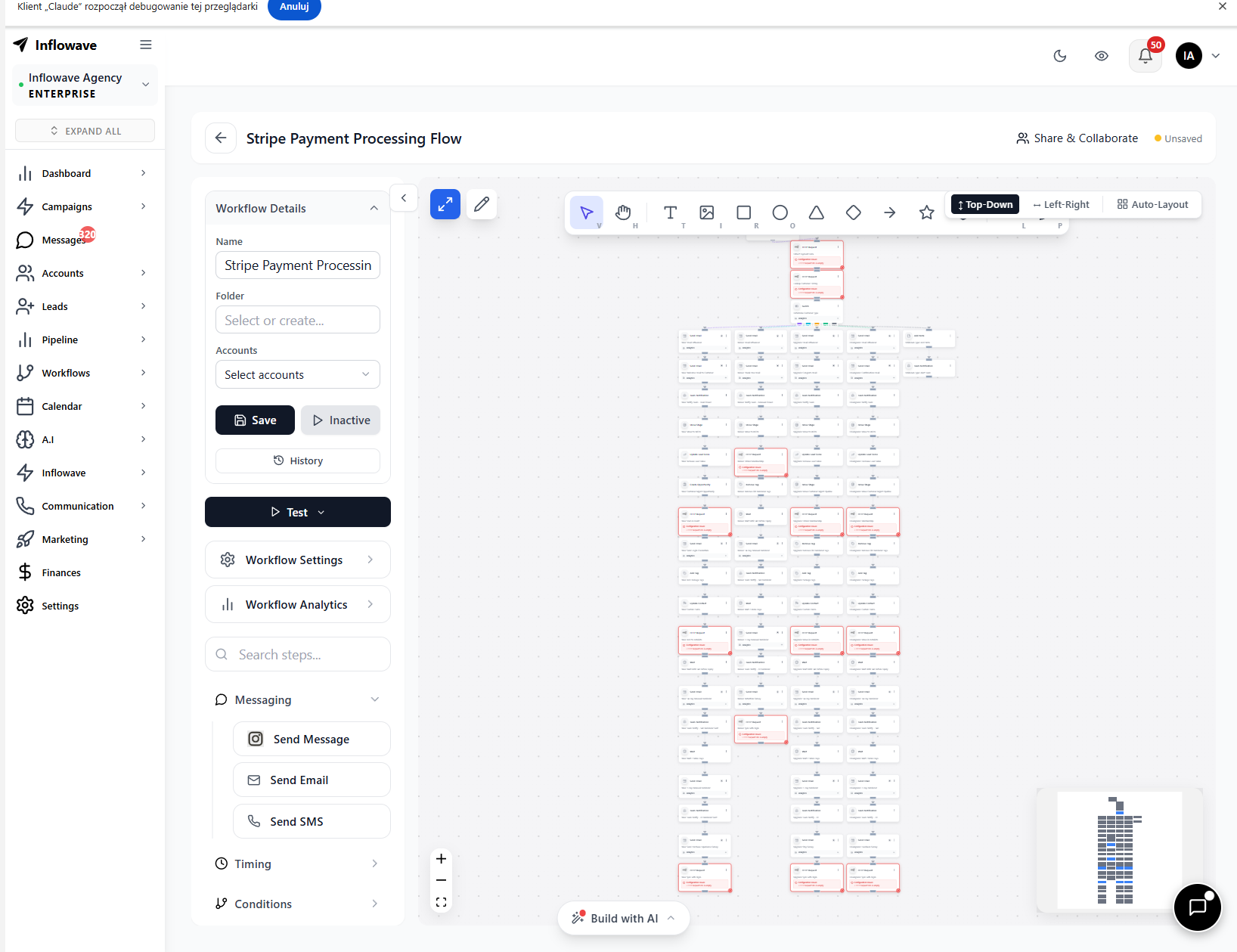 The visual workflow canvas lets you drag and drop triggers, conditions, and actions into a connected flow — see your entire automation logic at a glance before activating.
Step 2: Choose Your Trigger
Available triggers:
- DM received — fires when a contact sends a DM (optionally filter by keyword)
- Comment on post — fires when someone comments (filter by keyword)
- Form submission — fires when a landing page form is submitted
- Pipeline stage change — fires when a contact moves to a specific stage
- Tag applied — fires when a specific tag is added to a contact
- Scheduled / time-based — fires at a set time or delay after an event
- Contact created — fires when a new contact is added to your CRM
Step 3: Add Conditions
Branch your workflow based on contact data:
- Is this their first DM, or have they messaged before?
- Are they tagged as "qualified" or "not ready"?
- Did they respond to the last message?
- Are they in a specific pipeline stage?
Conditions let you send different paths to different contacts — the same way a skilled salesperson adapts their approach.
Step 4: Add Actions
Actions are what the workflow does at each step. Available actions include:
- Send DM — send a text, image, link, or button-reply message
- Send DM with buttons — quick-reply buttons that trigger the next branch
- Create pipeline card — add to a specific pipeline stage
- Move pipeline card — update stage for an existing pipeline contact
- Apply tag — add or remove a contact tag
- Assign to team member — route to specific person or round-robin
- Update contact field — save data from the conversation to the CRM
- Send email — notify your team or send a follow-up email
- Wait / delay — pause the workflow for minutes, hours, or days
- Webhook — send data to an external system
Step 5: Test and Activate
Use Test mode to run the workflow with a test contact before going live. Inflowave shows you each step as it executes and flags any configuration errors.
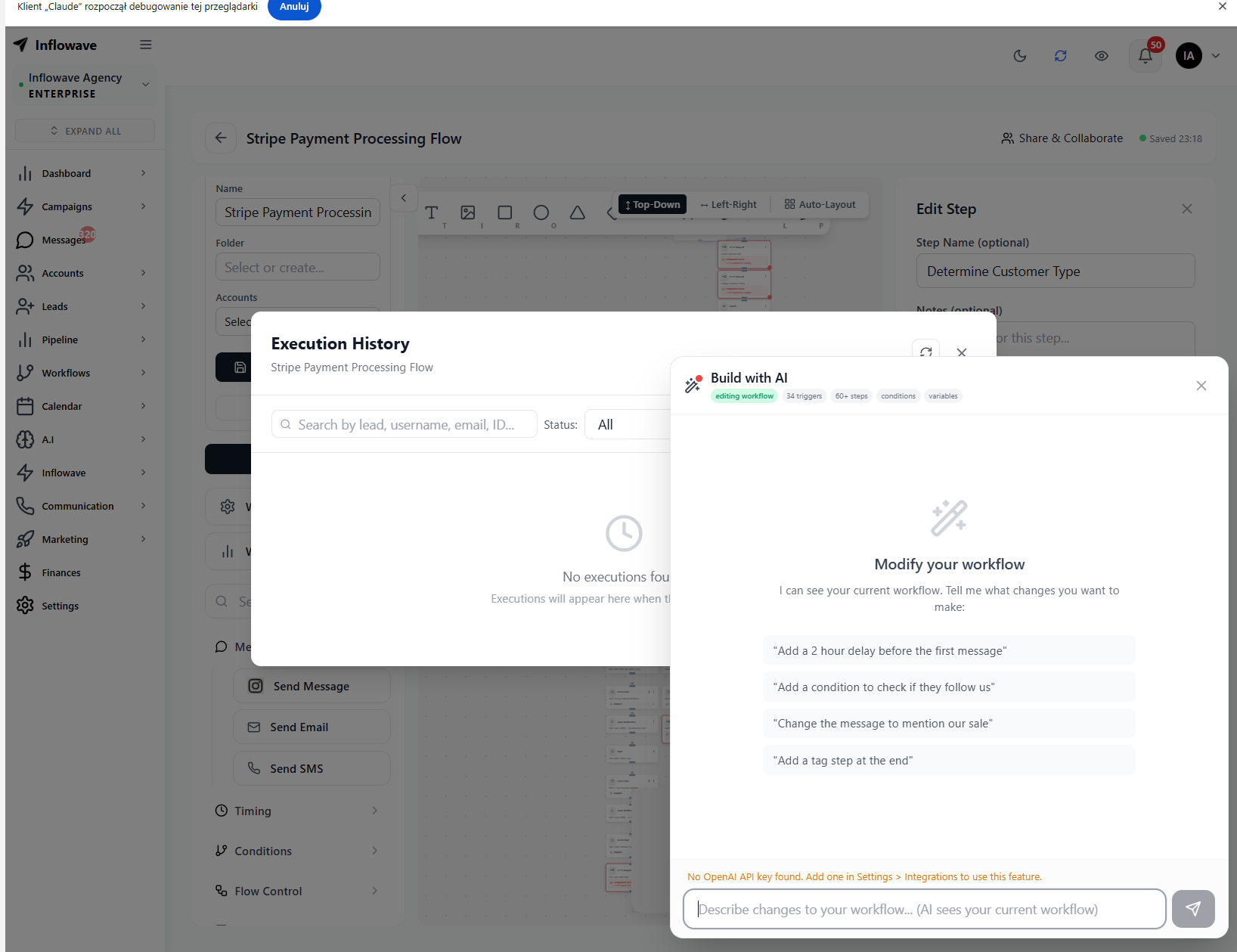 The AI workflow builder lets you describe your automation goal in plain English and generates the full workflow structure — triggers, conditions, delays, and actions — ready to review and activate.
Once tested, toggle the workflow to Active.
High-Value Workflow Templates
The "Comment to Close" Workflow
Trigger: Comment keyword "INFO"
- Like the comment
- Send DM: "Hey {{first_name}}, here's what you asked about: [link]"
- Add tag: "comment-lead"
- Create pipeline card: "New Inquiry"
- Wait 48 hours
- If no reply: send DM: "Just checking in — did you get a chance to look through it?"
- If replied: move pipeline card to "Engaged"
The "Form to Follow-Up" Workflow
Trigger: Landing page form submission
- Send instant DM: "Got it, {{first_name}}! Thanks for reaching out. I'll review your details and get back to you within a few hours."
- Create pipeline card: "New Lead"
- Assign to team member (round robin)
- Send team notification: "New lead from landing page: {{first_name}}"
- Wait 2 hours
- If unassigned: escalate to manager
The "Re-Engagement" Workflow
Trigger: Tag applied "inactive-60-days"
- Wait 1 hour
- Send DM: "Hey {{first_name}}, just circling back. Are you still working on [goal they mentioned]?"
- If reply: remove "inactive" tag, apply "re-engaged" tag, move pipeline to "Active"
- If no reply in 7 days: tag "unresponsive", remove from active pipeline
Inflowave Workflows vs. GoHighLevel vs. Make.com
| Feature | Inflowave | GoHighLevel | Make.com |
|---|---|---|---|
| Visual workflow builder | ✅ | ✅ | ✅ |
| Instagram DM as primary trigger | ✅ | ❌ Add-on | ❌ Via API |
| Comment trigger | ✅ | ❌ | ❌ |
| Pipeline stage trigger | ✅ | ✅ | ❌ Native |
| Native CRM actions | ✅ | ✅ (GHL CRM) | ❌ |
| AI workflow generator | ✅ | ❌ | ❌ |
| No-code setup | ✅ | ✅ | ❌ |
| Multi-account support | ✅ | ✅ (sub-accounts) | ❌ |
| Included in base plan | ✅ | ❌ | ❌ |
GoHighLevel workflows are excellent for email and SMS campaigns, but Instagram DM automation in GHL requires a separate Meta integration and is not a first-class feature. Make.com requires API credentials, module configurations, and ongoing maintenance — it's built for developers, not Instagram marketers.
Frequently Asked Questions
How is Inflowave workflow different from GoHighLevel? GoHighLevel workflows are optimized for email and SMS. Instagram DMs are a secondary channel requiring additional setup. Inflowave workflows are designed from the ground up for Instagram — DMs, comments, and stories are the primary triggers.
Can I connect Inflowave workflows to other tools? Yes. The Webhook action lets you send data to any external system — Zapier, Make.com, your own CRM, email platform, or custom API endpoint.
How many workflows can I run simultaneously? Inflowave supports unlimited concurrent active workflows on paid plans. Contacts can be enrolled in multiple workflows at the same time.
Can workflows run on multiple Instagram accounts? Yes. If you manage multiple accounts in Inflowave, you can create workflows for each account and manage them from the same dashboard.
Conclusion
Workflow automation is what separates Instagram businesses that scale from ones that stay stuck manually following up. Inflowave's workflow builder gives you the power of GoHighLevel-style automation, the flexibility of Make.com, and the Instagram-native integration that neither offers out of the box.