How to Send Instagram Broadcast Messages with Inflowave (2025 Guide)
TL;DR
Inflowave's broadcast feature lets you send personalized DM campaigns to your entire contact list — or specific segments — with one click. Unlike ManyChat broadcasts, your Inflowave broadcast list is already connected to your CRM, pipeline, and automation flows. When a contact responds, the right workflow fires automatically.
Watch: Inflowave Unified Inbox & Messaging
What Are Instagram Broadcast Messages?
An Instagram broadcast is a bulk DM sent to a group of opted-in contacts. Unlike a mass spam blast (which Instagram prohibits), broadcasts in Inflowave go to people who have previously engaged with your account — through DMs, comment triggers, or landing page forms.
Used correctly, broadcasts are one of the highest-performing channels for Instagram-based businesses — open rates average 80–90% vs. 20–30% for email.
Common use cases:
- Launch announcements: "My new program opens tomorrow. Here's the link."
- Flash sales: "24-hour discount — only for this list."
- New content drops: "New reel just went live. Comment GUIDE below for the free resource."
- Re-engagement: "Haven't heard from you in a while. Are you still interested in [offer]?"
How to Set Up an Instagram Broadcast in Inflowave
Step 1: Build Your Contact Segment
- Go to Leads in the left navigation
- Use filters to select your audience:
- Tag (e.g., "comment-lead", "waitlist")
- Pipeline stage (e.g., "New Lead", "Follow-Up")
- Last contact date
- Source (e.g., came from comment trigger on specific post)
- Location, account type, or custom fields
- Save the segment for use in the campaign
Step 2: Create a New Broadcast Campaign
- Go to Campaigns → New Campaign → Broadcast
- Name your campaign and set the sending account
- Write your broadcast message using personalization tokens:
{{first_name}}— pulls from their contact record{{username}}— their Instagram handle
Example message:
"Hey {{first_name}}! Quick heads up — I'm opening 3 new coaching spots this week. These fill fast. Want me to send you the details?"
Step 3: Add Quick Reply Buttons and AI Message Creator
Button replies dramatically increase response rates. Add 1–3 quick reply options:
- "Yes, send me the details" → triggers a follow-up flow with pricing
- "Not right now" → tags them "not-now", schedules a re-engagement in 30 days
- "What's included?" → sends a breakdown message automatically
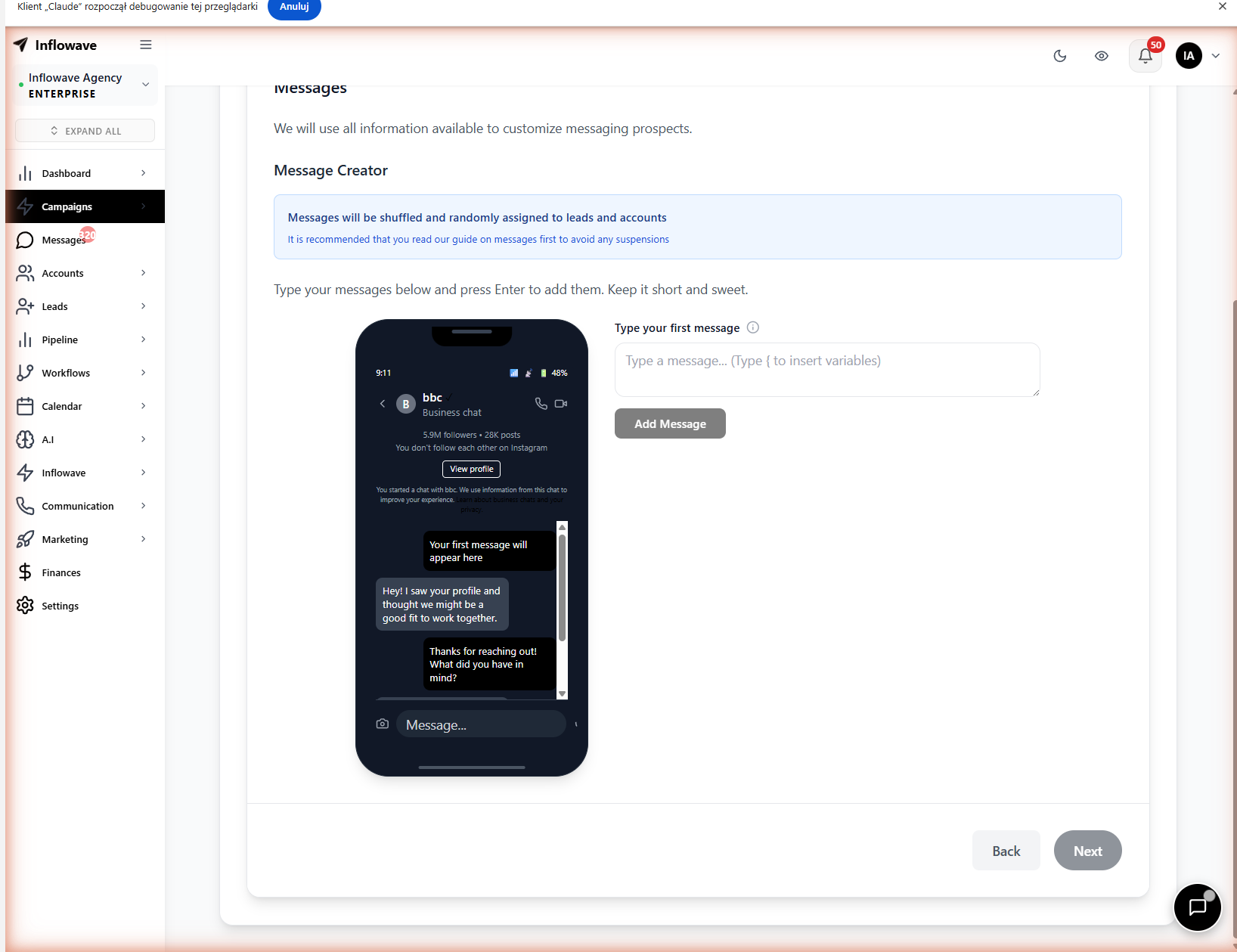 The campaign message editor includes an AI copy assistant and a live phone preview so you can see exactly how your broadcast DM will appear in the recipient's inbox before sending.
Step 4: Schedule or Send
- Send now: Delivers immediately (throttled to respect Instagram rate limits)
- Schedule: Pick a date and time — useful for timed launches or early-morning sends
- Staggered delivery: Spread sends over a time window to appear more natural
Step 5: Monitor Results
After sending, the campaign dashboard shows:
- Delivered / failed counts
- Response rate (% who replied)
- Button tap distribution
- Contacts who entered follow-up workflows from the broadcast
Broadcast Strategies That Convert
The "Reply to Unlock" Broadcast
Instead of sending the link directly, require a reply:
"I'm sharing a free resource with my list today. Reply 'SEND IT' and I'll shoot it over."
This filters for active contacts AND keeps the conversation in DMs. Everyone who replies goes into a new segment: "actively engaged."
The "Soft Re-Engagement" Broadcast
For contacts you haven't talked to in 30+ days:
"Hey {{first_name}} — just checking in. You reached out a while back about [topic]. Still something you're working on?"
No hard sell. Just a check-in that restarts conversations with warm leads.
The "Launch Sequence" Broadcast
Run a 3-message sequence over 5 days before a launch:
- Day 1: "Something big is coming. Watch this space."
- Day 3: "It's live. Here's what's inside: [link]"
- Day 5: "Closing spots tomorrow. Just checking if you saw this."
Inflowave Broadcasts vs. ManyChat Broadcasts
| Feature | Inflowave | ManyChat |
|---|---|---|
| Bulk DM broadcasts | ✅ | ✅ |
| Personalization tokens | ✅ | ✅ |
| Segment by tag/pipeline/source | ✅ | ✅ (tags only) |
| Quick reply buttons | ✅ | ✅ |
| Scheduled sends | ✅ | ✅ (Pro) |
| Auto-flow on button tap | ✅ | ✅ |
| Response → pipeline action | ✅ Native | ❌ Needs Zapier |
| AI message creator | ✅ | ❌ |
| Multi-account broadcasts | ✅ | ❌ |
| Delivery analytics | ✅ | ✅ |
| Included in base plan | ✅ | ❌ Pro plan |
ManyChat broadcasts are reliable and battle-tested. The gap shows up when a contact responds to a broadcast — in Inflowave, that response triggers pipeline updates, tags, and follow-up flows natively. In ManyChat, you need Zapier to push that data to your CRM.
Frequently Asked Questions
Does Instagram allow bulk DMs? Yes, when sent to opted-in contacts through Meta-approved tools. Inflowave uses the official Instagram Messaging API. Broadcasts sent to contacts who have previously engaged with your account are compliant.
What's the maximum number of contacts I can broadcast to? This depends on your plan and your Instagram account's standing. Inflowave throttles delivery to stay within Meta's rate limits. High-trust accounts can typically broadcast to thousands of contacts.
Can I A/B test broadcast messages? Yes. You can create two message variants, split your audience, and compare response rates to optimize your copy over time.
Conclusion
Instagram broadcasts are the email list of Instagram — except with 4x the open rate. Inflowave's broadcast tool combines bulk delivery with full CRM integration, so every send feeds directly into your pipeline and automations. No ManyChat, no Zapier, no separate tool.