Most businesses don't want to choose between the WhatsApp Business app on the owner's phone and a proper shared inbox for the team. With coexistence, Meta's name for running one number in both places, you don't have to.
You keep answering from the phone when you want to. The same chats show up in Inflowave, where the team can reply, automations can run, and every message is saved next to the contact's other channels.
This guide walks through the whole setup as it looks inside Inflowave, including what Meta asks you along the way and the few things that trip people up.
Already seeing "WhatsApp is temporarily unavailable, try again in 1 hour"? Your number is probably registered with a platform already, which means it has to come off it first. Start with this guide and come back here.
How it works
The order is the whole trick:
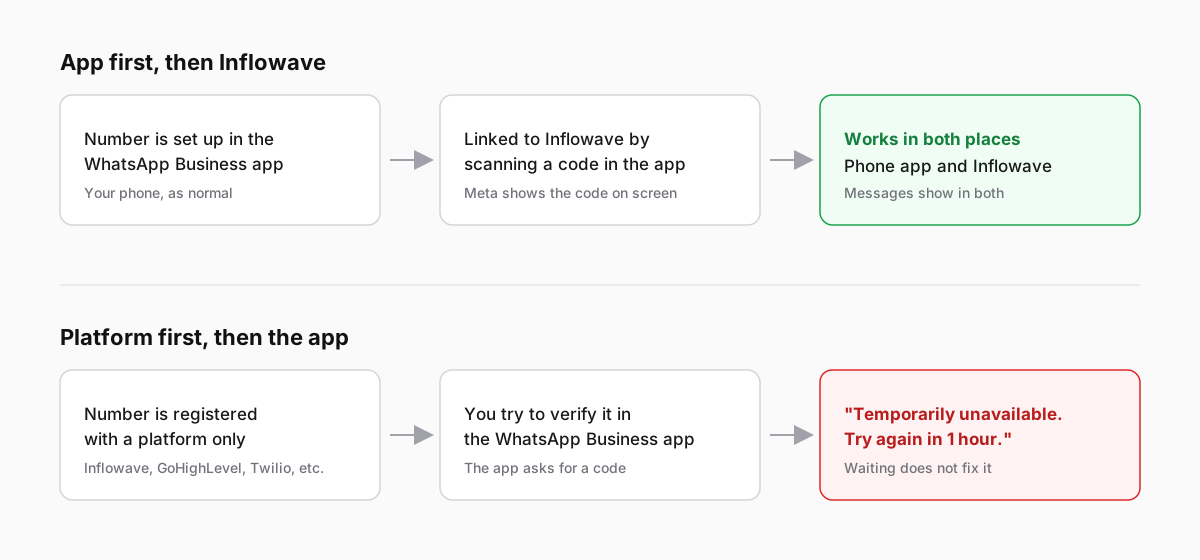
- The number is already working in the WhatsApp Business app on a phone.
- You link it to Inflowave. Meta opens a window, recognises the number is on the app, and asks you to scan a code with the phone.
- From then on, a message sent from either side shows in both.
If the number goes onto a platform first, the phone app can't take it afterwards.
What you need before you start
| You need | Why |
|---|---|
| The number active in the WhatsApp Business app (not regular WhatsApp) | Only Business app numbers can be linked this way |
| The app updated (Meta asks for version 2.24.17 or later) | Older versions don't offer the link |
| The phone in your hand | You scan a code with it, and the code expires after a few minutes |
| A Facebook login that can manage your business in Meta, or one you can create a business with | Meta asks you to pick or create a business portfolio |
| A few minutes without interruptions | If the Meta window times out you start again |
It also helps to:
- turn off two-step verification in the app (Settings, Account) for the duration of the setup
- disconnect any other platform that sends WhatsApp from this number, such as GoHighLevel or another inbox tool
Some countries don't support coexistence yet. Inflowave's number check (step 3) tells you if yours is one of them.
Step 1: open WhatsApp for the right client
In Inflowave go to Client Manager, open the client the number belongs to, and select Integrations. Click the WhatsApp icon, then Connect.
Pick the client carefully. The number, its chats and its contacts belong to that client's workspace. You can move it later from the agency view, but it's easier to choose correctly now.
Step 2: choose "I already have a WhatsApp number"
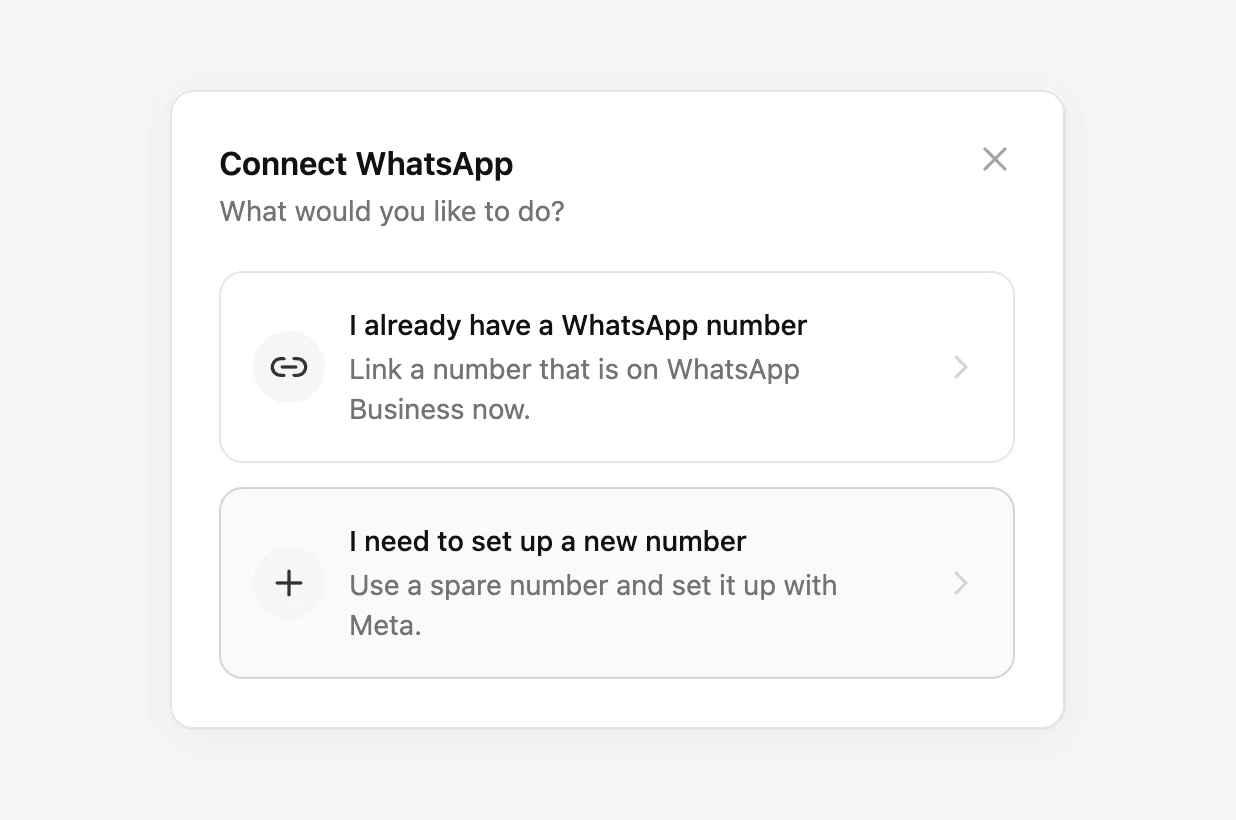
"I already have a WhatsApp number" is the coexistence path. "I need to set up a new number" is for a spare number that will live in Inflowave only, with no phone app.
Step 3: check the number
Type the number with its country code and press Check. Inflowave tells you whether it can be linked and lists anything to do first.
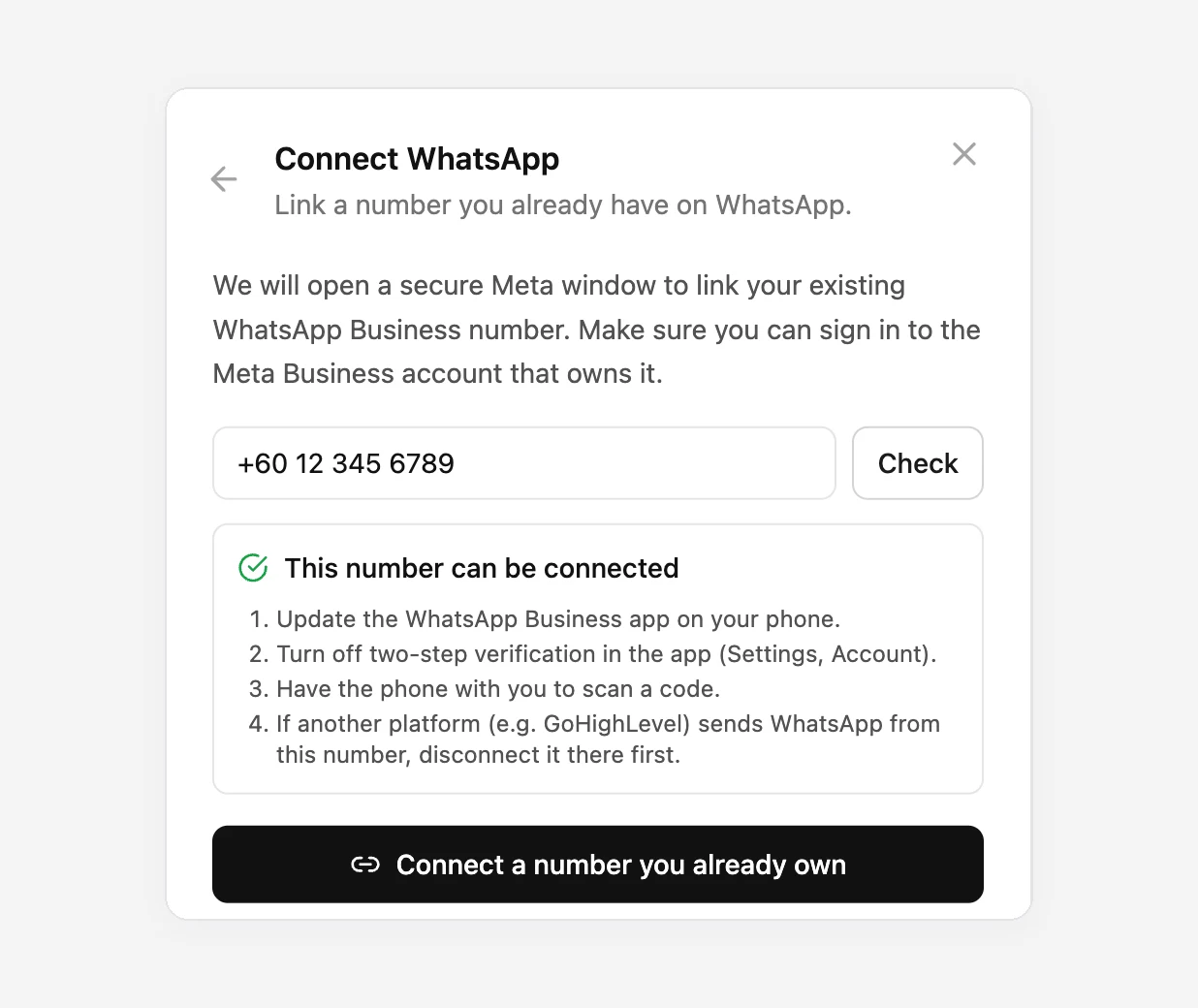
If it says the number can't be connected, the reason is shown underneath. The most common one is that the country doesn't support sharing a number with the app yet. You can still connect it to Inflowave only.
Step 4: go through Meta's window
Press Connect a number you already own. A Meta window opens. Inflowave doesn't control what's in it, but this is what to expect:
- Log in with Facebook and press Continue. This is where you agree to Meta's WhatsApp terms.
- Pick or create your business portfolio. Use the real business name. It doesn't change the name customers see on WhatsApp.
- Enter the phone number exactly as it is in the app. Meta recognises it's on the WhatsApp Business app and switches to linking it. You won't see a separate button for "connect the app". Entering the number is what triggers it.
- Scan the code with the phone. Meta shows a QR code, and the WhatsApp Business app on your phone opens a prompt to scan it. Do it straight away, because the code expires.
- Choose whether to share your chat history. If you say yes, Meta sends up to the last six months of one-to-one chats, and they appear in Inflowave over the next few minutes.
Keep the Meta window open until it finishes. Closing it early is the most common way to end up half connected (see troubleshooting below).
Step 5: confirm it's live
When Meta finishes, Inflowave shows a confirmation with the number and its WhatsApp name. In the client's WhatsApp panel the number now shows as connected.
The quickest real test: send a message from the phone to someone, then open that conversation in the Inflowave inbox. Messages sent from the phone are labelled From phone, so the team can tell who answered where.
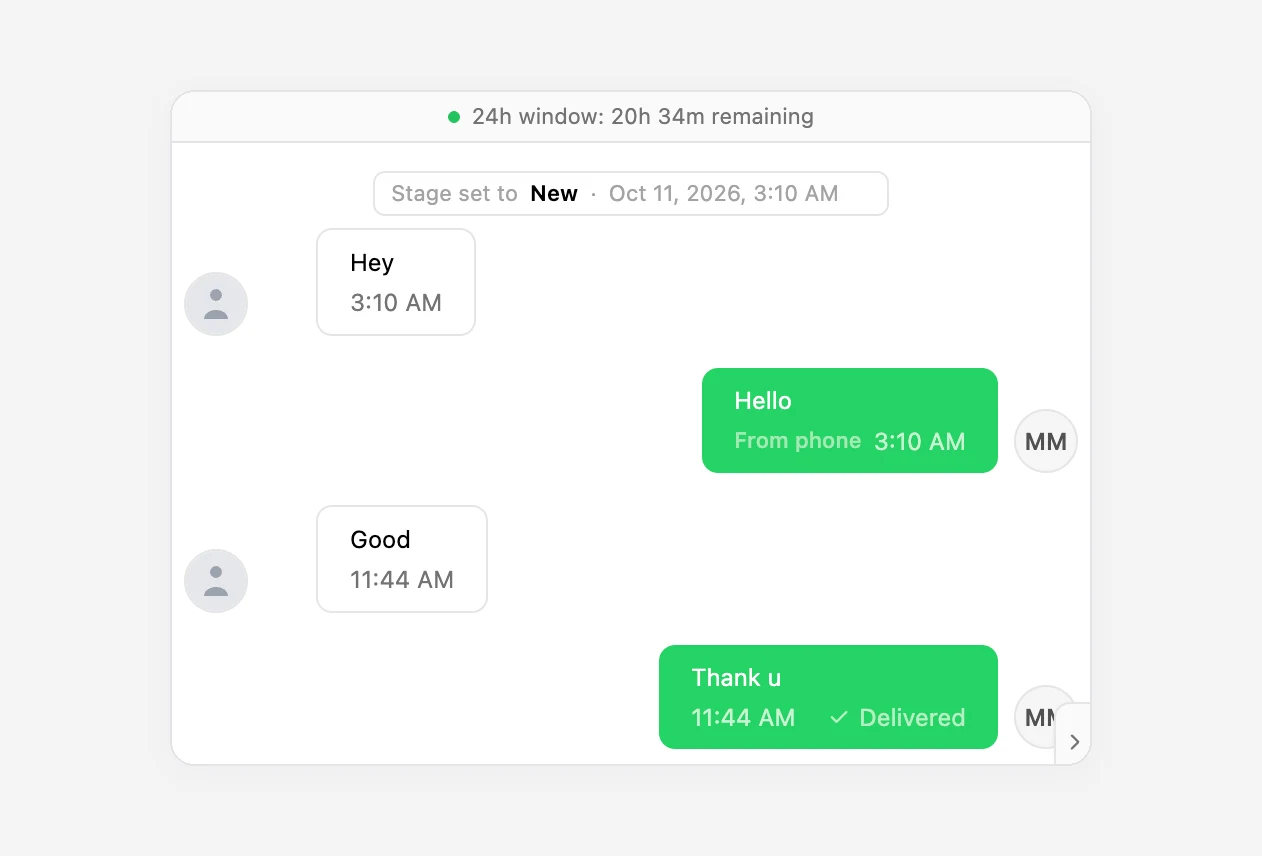
Then reply from Inflowave and check that it lands in the customer's chat. It also shows on your phone, in the same chat.
What works where
| WhatsApp Business app | Inflowave | |
|---|---|---|
| One-to-one chats | Yes | Yes, same chats |
| Messages you send | Show in both | Show in both |
| Templates, automations, AI replies | No | Yes |
| Several team members replying | One phone | Everyone with access |
| Group chats | Yes | Not synced |
| Broadcast lists | Read-only after linking | Use campaigns instead |
| Disappearing messages, view once, live location | Turned off in one-to-one chats | Not available |
A few limits come from Meta, not from us:
- Open the app every couple of weeks. If the phone app isn't opened for a long time, Meta can unlink the number from the platform. Opening it once a week is a safe habit.
- Speed is capped at 20 messages per second, shared between phone and platform. That only matters for very large sends.
- Some message types only show on the phone. Inflowave shows them as "Message only visible on your phone", so you know something is there.
- Messages you start cost money; replies don't. Replies inside the 24-hour window after a customer writes are free. Messages you start, outside that window, use paid templates billed by Meta, which means Meta needs a payment method. See WhatsApp messages paused: how to add a payment method.
Troubleshooting
The phone says "connected", but Inflowave says it isn't
The phone finished but the Meta window didn't, usually because it timed out or was closed. Meta then thinks the link exists and Inflowave never received it. To fix it:
- In the WhatsApp Business app go to Settings, Account, Business Platform and tap Disconnect.
- Go back to Inflowave and start again from step 1, keeping the Meta window open until it finishes.
The QR code expired
Close the Meta window and start again. Have the phone unlocked with WhatsApp Business open before you press Connect.
Meta asked for a verification code instead of a QR code
You probably typed a number that isn't on the WhatsApp Business app (regular WhatsApp, or a different number). Check that the number matches exactly, country code included.
"Temporarily unavailable, try again in 1 hour" in the app
The number is registered with a platform already, so the order is the wrong way round. See this guide.
Messages from the phone don't show in Inflowave
Make sure you're looking at the right client and workspace, then send a fresh test message. If it still doesn't appear after a minute, contact support. We're alerted automatically when WhatsApp messages don't reach the inbox, so we'll often already know.
Turning it off
To stop sharing the number, disconnect it in Inflowave or in the app (Settings, Account, Business Platform, Disconnect). The number keeps working in the WhatsApp Business app, and the conversations already in Inflowave stay there.