Every agency relationship starts the same way. The contract is signed, everyone is excited, and then somebody has to get into the accounts. Two weeks later you are still on your fourth email, the client has sent you a screenshot of the wrong settings page, someone has offered you their password "just to make it easy," and the campaigns that were supposed to launch on the first of the month have not launched.
Access is the least glamorous part of running an agency and the part that most reliably wastes a fortnight. It is also where the mistakes are permanent. Claim the wrong asset into the wrong container and you will still be arguing about it two years later, in front of a lawyer.
This guide is the version we wish existed: every major marketing platform, both directions of every flow (what the client clicks, and what you click), the specific permission level to ask for rather than the one that is easiest to grant, and the traps that only show up at the end of a relationship. It covers Google Business Profile, the whole Meta estate, Google Ads, GA4, Search Console, Tag Manager, TikTok, LinkedIn, Pinterest, X, YouTube, Shopify and Klaviyo.
One promise before we start: you will not find a single instruction in here that involves asking a client for their password. There is no legitimate agency task in 2026 that requires one.
The one rule that prevents almost every access disaster
Here it is, and everything else in this guide is a footnote to it:
The client owns the assets. The agency is granted access to them.
Not "the agency sets it up because it is faster." Not "we will move it over later." The client's business portfolio, ad account, analytics property, tag container and Business Profile are created under the client's identity, in the client's container, and your agency is added as a partner or a linked manager.
This sounds obvious and almost nobody does it, because on day one the opposite is genuinely faster. The client does not have a Meta business portfolio. Making one is a twenty-minute conversation you do not want to have during onboarding, so you create the ad account inside your own portfolio, run it beautifully for eighteen months, and then the relationship ends.
Now find out what you actually built. On Meta, whichever business portfolio creates or claims an asset owns it, and only one business can own a Page. Meta publishes self-serve ownership-transfer flows for catalogues and for apps. It publishes no equivalent for Pages or ad accounts. So the client either walks away from their own ad history - every audience, every learning, every conversion record - or you stay hostage to an asset you no longer want and cannot cleanly hand back.
TikTok is blunter about it. Ad accounts created by a Business Center are owned by that Business Center, and TikTok states you cannot reverse an ad account transfer once it is complete. Google Tag Manager has no self-service ownership transfer at all, and Google's own guidance is explicit: the organisation for which the tags will be managed should create the Tag Manager account. In Google Analytics, an account is defined as a collection of properties whose data is owned by a single legal entity - if that entity is your agency, your client is a guest on their own data.
The fix costs you twenty minutes at kickoff and saves a legal letter later:
- Client creates the container (business portfolio, Business Center, GTM account, GA4 account, Google Ads account, Business Manager).
- Client creates or claims the assets inside it.
- Client grants your agency partner access or links your manager account.
- You assign your own staff, inside your own container, without the client ever touching your staffing.
If your existing client book already violates this - and it probably does - do not fix it during a notice period. Add an "asset owner" column to your access register, and schedule migrations at a quarterly review while the relationship is still warm. Ownership conversations are easy when everyone is happy and impossible when they are not.
Being genuinely easy to fire is a feature you should sell, not a risk you should minimise. Insist that the client retains at least one admin of their own on every asset. The agencies that lose clients over access disputes are never the ones that made leaving easy.
Ownership versus access: the distinction that ends agency relationships
Almost every platform has two completely different mechanisms that look similar in the interface, and choosing wrong is where the damage happens.
Access is a permission the owner grants you. It can be held by several partners at once, it can be dialled up or down, and it disappears the moment the owner revokes it. This is what you want.
Ownership (or "claiming") is exclusive. It moves the asset into your container and out of everyone else's. It is what the interface often nudges you toward, because the buttons sit next to each other.
The clearest example is Meta. Under Settings, Accounts, Pages, the Add dropdown offers three options: Add an existing Facebook Page, Create a new Facebook Page, and Request shared access to a Facebook Page. The first two put ownership in your portfolio. Only the third is an access request. Meta states directly that when you add a Page to your business portfolio, your business owns that Page.
The same fork exists elsewhere:
| Platform | The access route (use this) | The ownership route (avoid on client assets) |
|---|---|---|
| Meta | Partner access; Request shared access to a Page | Add an existing Facebook Page; creating client assets in your portfolio |
| Google Business Profile | Being invited as a Manager | Taking Owner or Primary owner; claiming on a personal Gmail |
| Google Ads | Manager account (MCC) link | Taking account ownership; creating the account under your own payments profile |
| Google Tag Manager | Container-level permissions | Creating the GTM account yourself |
| TikTok | Partner relationship; Request Access | Ad account transfer into your Business Center |
| Business Manager partner sharing | Claiming the Page or ad account into your Business Manager |
If a claim attempt throws an error saying the asset is already owned, that is not a bug to route around. It is the platform telling you another container owns it. Escalate to the client.
Before you send a single request: build the access inventory
The reason onboarding takes three weeks is almost never the platforms. It is that nobody wrote down what was needed, so access arrives in dribs, each one triggering another email.
Enumerate access per asset, not per client and not per platform. One row per ad account, per analytics property, per tag container, per Page, per pixel, per Business Profile location. Each row carries the permission level you are asking for, who on your side will hold it, the date it was requested, and the date it was verified working.
Then send it all at once, in one structured pack, with the exact click path for each item and a named person and date attached. A client who receives one clear document with eleven rows will do it in an afternoon. A client who receives eleven emails over three weeks will do it in three weeks.
Two rules that will save you repeatedly:
Justify each permission level. Default to the lowest level that actually works - Read-only, Viewer, Analyst - and escalate on demonstrated need with a dated note. "We asked for admin because it was easier to ask once" is how you end up explaining to a client why you could see their payment methods.
Grant only to named work identities on your own managed domain. Not personal Gmails, not a shared social@agency.com inbox. Ideally behind single sign-on, so that disabling someone's directory account cascades everywhere at once. The exception is genuinely zero-access roles, like Google Ads' Email-only level, where a shared alias is fine.
And a warning that catches everyone: a pending invitation looks exactly like success from the client's side. They clicked the thing. They told you it is done. Nothing on the platform flags that you never accepted, or that the invite email went to spam. Verify every grant the same day by logging in yourself and confirming both that the asset is visible and that the actions you need are available. Only then mark the row complete.
Meta: Facebook Pages, Instagram, ad accounts and business portfolios
Meta is the messiest estate and the one most agencies get wrong, partly because the terminology has changed repeatedly. Business Manager is now the business portfolio, inside Meta Business Suite. The old Page roles (Admin, Editor, Moderator, Advertiser, Analyst) have been replaced by a Page Access model. And the old asset permission labels - Standard access and Admin access - have been retired in favour of Full control and Partial access.
The correct pattern
Your agency has its own business portfolio. The client has theirs. The client adds your portfolio as a Partner and shares specific assets with specific permission levels. You then assign your own employees to those assets from inside your own portfolio.
That last part is the bit agencies skip, and it matters. If you instead get your staff added as people inside the client's portfolio, access is tied to individual personal Facebook profiles. When that employee leaves, access leaves with them, or worse, stays with them. The client ends up managing your staffing. Offboarding becomes a per-person cleanup instead of one revoke.
What you need to exchange: your business portfolio ID. That is the entire handshake. A number, not a credential.
Flow A: the client shares assets with you (client-initiated)
Prerequisites: your agency already has a business portfolio, and the client has full control of theirs.
- Client opens Meta Business Suite, then Settings.
- Under Users, click Partners.
- Click Add.
- Choose Give a partner access to your assets.
- Enter your agency's business portfolio ID, then Next.
- Select the assets to share - Pages, ad accounts, catalogues, datasets - and set the access level on each.
- Click Assign assets.
The client can confirm it worked by clicking your agency in the Partners list and checking the Assets you shared tab.
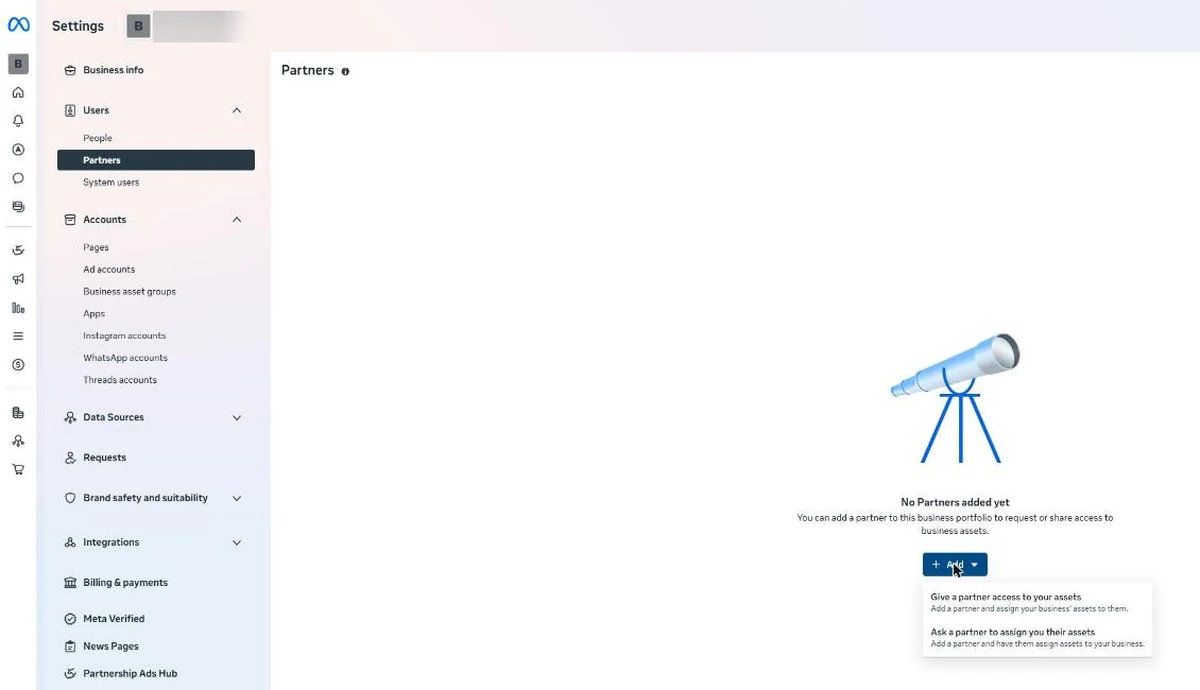
The two options in that dropdown are the whole story, and the wording tells you which direction each one runs: "Give a partner access to your assets" adds a partner and assigns your assets to them. "Ask a partner to assign you their assets" adds a partner and has them assign assets to your business. As an agency you will use the second one; your client uses the first.
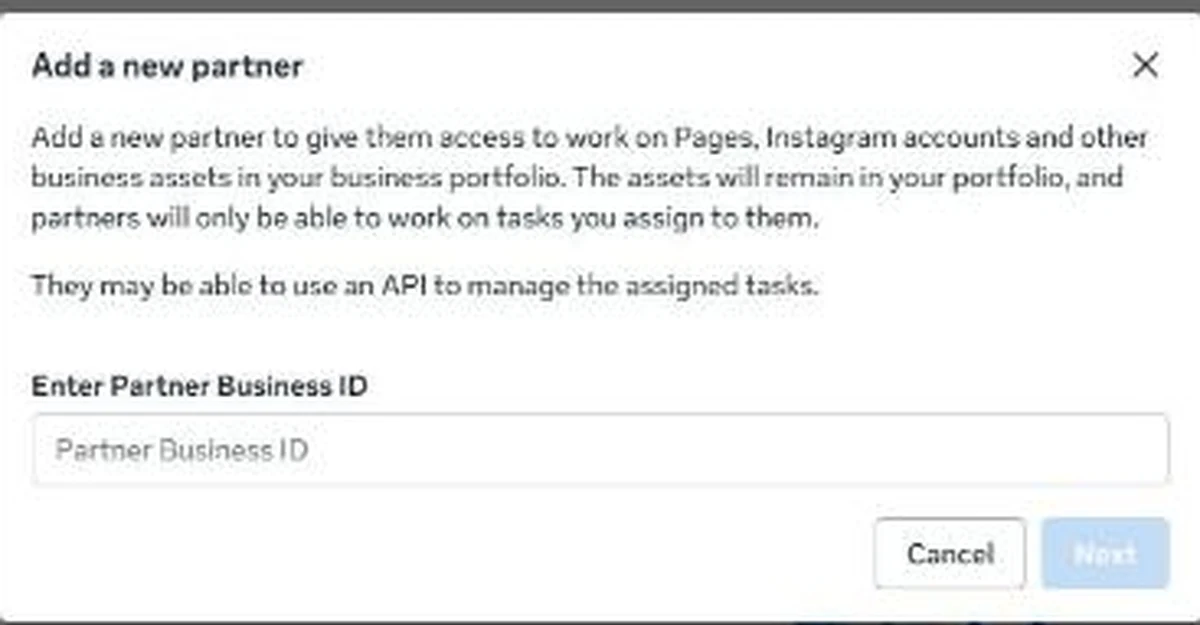
Meta's own copy on that dialog is the clearest statement of the ownership principle you will find anywhere: the assets "will remain in your portfolio, and partners will only be able to work on tasks you assign to them." That is exactly the arrangement you want, and it is worth quoting to a nervous client.
Flow B: you request assets from the client (agency-initiated)
Use this when the client will not navigate Business settings themselves. You do the setup; they only have to approve.
- In your own portfolio, go to Settings, then Partners, then Add.
- Choose Ask a partner to assign you their assets.
- Review the information and click Get started.
- Enter the client's email address and their business portfolio ID. Both are required - this catches people out, because the client-initiated flow only needs the ID.
- Select the roles for both your business and theirs, then Next.
- Choose the asset types and permission levels, then Next.
- Review and click Send request.
An admin on the client side must approve before anything is granted. Nothing happens unilaterally.
Flow C: a single Page, when the client has no portfolio worth wiring up
There is a prerequisite Meta does not make obvious: you must already have a primary Page in your own business portfolio before you can request access to another Page. An agency with an empty portfolio simply cannot use this route.
- Meta Business Suite, Settings, then under Accounts click Pages.
- Click Add, then Request shared access to a Facebook Page.
- Enter the Page name or URL, then Next.
- Choose the access level - partial access with specific task permissions, or full control - and click Confirm.
The request goes to an admin of the Page's owning portfolio for approval.
One thing to know afterwards: people who had access to the Page before it was added to a business portfolio can still access and manage it. The portfolio is not the single source of truth for who can post. After onboarding, audit Page, Manage, Page Access for leftovers - the former employee, the client's cousin who set the Page up in 2014 - and clear them out.
Which Meta permission level to ask for
At the portfolio level, the roles are Full control (formerly the business admin role), Partial access - basic access (formerly the employee role, and the default when people are added), and Partial access - apps and integrations (formerly the developer role). Your agency staff sit on partial access inside your own portfolio. Nobody from your agency needs full control of the client's portfolio, ever.
At the asset level there are two: Full control, which carries every permission for that asset including the ability to delete it, and Partial access, where specific tasks are assigned. Default to partial access with only the tasks the work requires. Reserve full control for the small number of assets you genuinely run end to end.
Page access has three levels: partial access (business tools only), which works through Business Suite and Ads Manager but cannot switch into the Page on Facebook; partial access (business tools and Facebook), which can switch into the Page; and full control, which additionally manages Page access for others. Most agency work needs the first. Full control should stay with the client - an agency with full control of a Page can lock the client out of it.
Ad account roles are three: admin (create, edit and view ads, access reports, edit payment methods, manage permissions), advertiser (see and edit ads, run them on the account's existing payment method) and analyst (view ads and reporting). Advertiser is the right default for most media buyers: full campaign control, zero billing access. Some clients will object to admin specifically because of the payment-method rights, and they are right to.
Finance access is a separate advanced option layered on top of full control or partial access, covering transactions, invoices, account spend and payment methods. Leave it with the client unless you are genuinely fronting the ad spend.
The Instagram account has to be a professional (business or creator) account; a personal one will be prompted to convert during linking.
The client goes to Settings, then Instagram accounts in the left menu under Accounts, clicks Add, then Add Instagram account, enters the credentials, clicks Log in, works through any cookie approval, professional-account conversion or two-factor prompt, and clicks Confirm.
On mobile: tap More in the bottom menu, then Settings, then Connect next to Instagram, then Connect account, set the inbox-message and push-notification toggles, tap Confirm, log in, tap Continue, then OK. It has worked when Instagram shows as Connected.
Then share the Instagram account to your portfolio through the Partners flow. Do not add agency staff as people on the client's Instagram account directly.
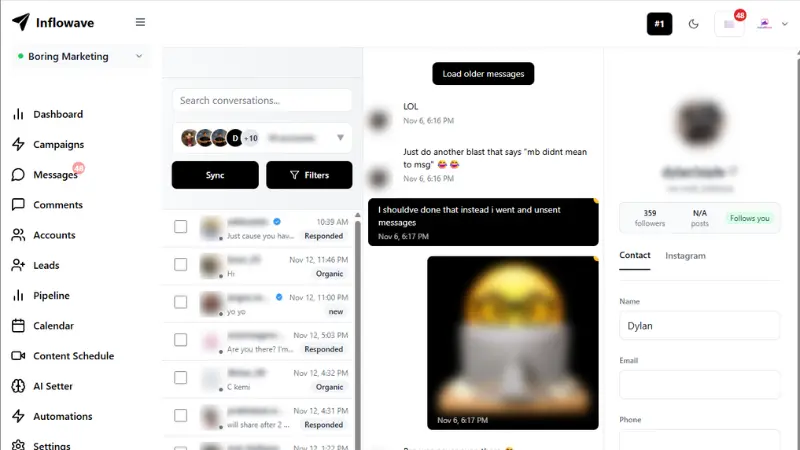
Getting this right is what puts the client's Instagram DMs, comments and publishing into your own tooling without anyone sharing an Instagram password. If you are running conversations at volume across several clients, that unified access is the whole point - it is the difference between logging into nine Instagram accounts every morning and working one inbox.
Meta traps worth knowing
Two-factor enforcement will lock out your own team overnight. The requirement is set at Settings, Business portfolio info, Business options, then the dropdown next to Two-factor authentication. Only people with full control can change it, and it takes effect immediately. Get 2FA switched on for every agency staff account before the client enforces it, and before you wire up any system user or third-party integration - otherwise your API calls start failing with two-factor errors and nobody knows why.
Adding someone directly to an ad account requires a Facebook friendship. Meta requires that the person has an active Facebook account and that you are Facebook friends with them. An agency seat that is not a friend of the client cannot be added this way. This alone is a good reason to use partner access instead.
Temporary access exists and almost nobody uses it. Meta Business Suite lets you grant basic access for a minimum of 3 days and a maximum of 75 days, after which access is automatically revoked and the person is removed from the portfolio and its assets. For audits, pitches and freelancers, this is exactly the right tool.
You cannot grant Page access to a "gray account" - an old Page-only account. And granting Facebook access requires the granter to enter their own Facebook password and the recipient to accept an emailed invitation, so access is not live until accepted.
What you lose the instant partner access is revoked: the Page, the ad account and its entire campaign history, pixel and dataset access, catalogues, the Instagram inbox, and any custom audiences or conversions that were shared. All at once, all irreversibly. Partner access is permission, not ownership, and you keep nothing. Export your reporting on a schedule into your own storage rather than relying on Ads Manager access, and keep creative and copy in your own systems.
If your client's ad account or portfolio gets restricted mid-engagement, that is a different problem with its own playbook - see our guide to a disabled Meta ad account or Business Manager.
Google Business Profile
Local clients care about this more than anything else you manage, and it has the nastiest ownership dynamics of any platform in this guide, because the "profile" is attached to a real business that Google independently believes exists.
The roles
There are three: Primary owner, Owner and Manager. When you add a new user, the access picker offers only Owner and Manager. Primary owner can only be selected when editing an existing owner or manager's access, and only by the current primary owner.
Google's own description of Manager is the useful one: managers, formerly known as site managers, have mostly the same access to the profile as owners. The only exception is that they cannot add or remove users, and cannot remove the profile.
That is it. A Manager can edit business information, post, respond to reviews, manage photos and the logo, edit URLs, and download insights. Manager is the correct ask for an agency. Full day-to-day operational control, with zero ability to lock the client out.
An agency holding Primary owner is the single biggest source of ownership disputes at the end of a local SEO relationship. If the relationship sours, the client's only route back into their own business listing is a Request Access flow against their own business, with a response window the agency can simply deny. Put it in the contract that the client retains primary ownership.
Flow A: the client invites you (the clean path)
The client opens their Business Profile, goes to Business Profile settings, then People and access, clicks Add, enters your work Google account, chooses Manager, and sends.
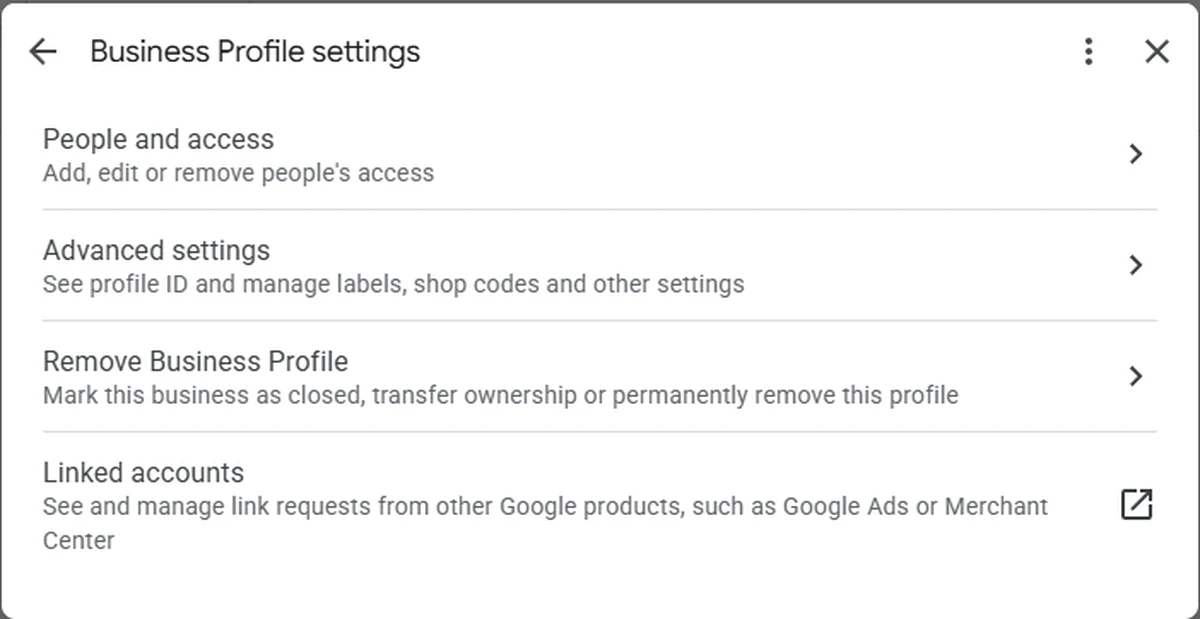
The Add person dialog is refreshingly blunt about the choice you are making. There are exactly two options, and Google describes them itself: Owner "can edit, add people and transfer ownership", Manager "can make changes to the Business Profile on Google Search and Maps". Note that Primary owner is not offered here at all.
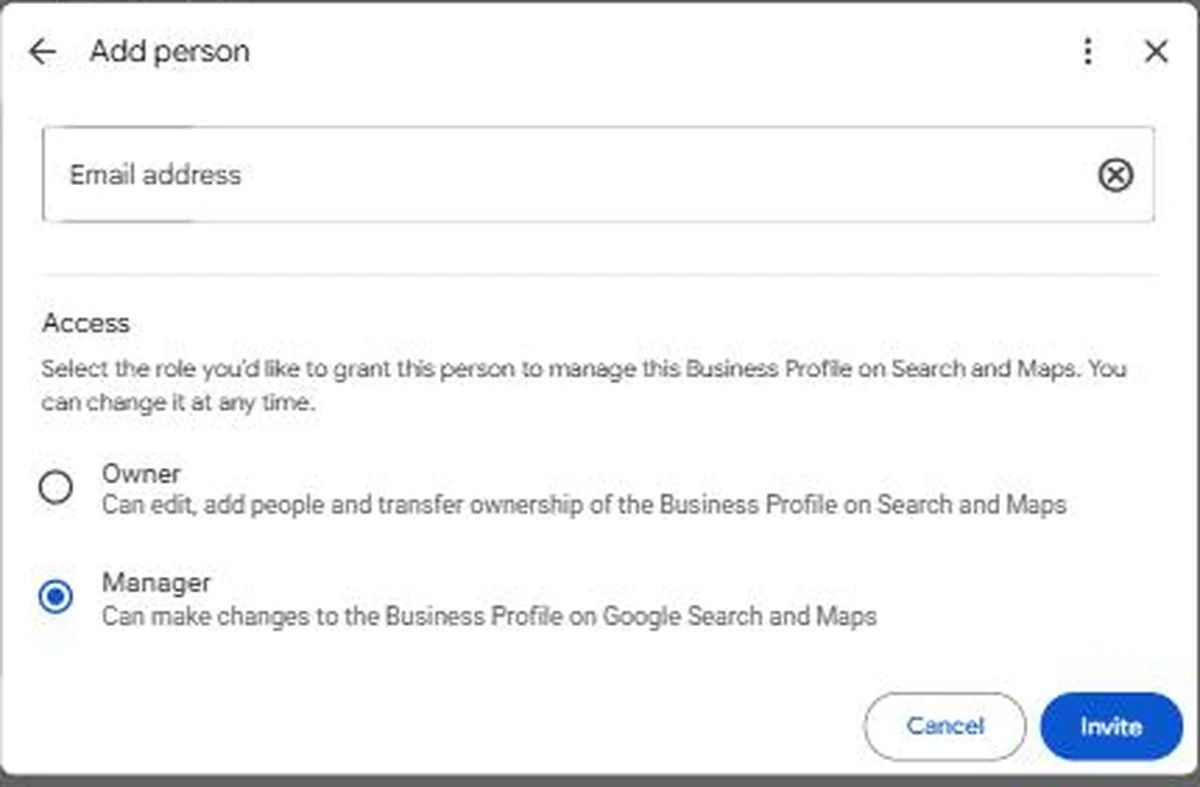
Then - and this is the step everyone skips - the client goes back to People and access and confirms your name has moved out of PENDING. Pending invites sit in limbo silently and the email frequently never lands. If it is stuck, cancel the invitation and re-send.
Flow B: you request access to a profile you cannot get invited to
This is for the common case where the profile is claimed by someone unreachable - a former employee, a previous agency, a web developer who has vanished.
You find the profile, request access, and Google emails the current owner. The owner has 3 days to respond.
Do not confuse that with the other number. There are two distinct time windows on Google Business Profile and every third-party guide mashes them together:
- 3 days - how long a current owner has to respond to a Request Access.
- 7 days - how long a newly added owner or manager must wait before they can manage all features: deleting or undeleting the profile, removing other owners or managers, or setting a primary owner.
That second one silently breaks handovers. If you plan to transfer primary ownership on the day someone is added, it will fail. Add the incoming owner a full week before the planned transfer date. Never plan an acquisition-day ownership flip.
If nothing happens within the 3 days, open the confirmation email, select View request, then Verify. Warn the client up front, though, because Google states plainly that the option to claim a profile is not always available.
For a service-area business with no physical shop or office, the self-serve transfer path does not apply at all - Google directs you to contact support and enter "Transfer ownership of listing" as the issue.
Managing profiles at agency scale
Two structures exist above the individual profile.
Business groups let you collect profiles together. To move profiles into one, select the profiles you want, then Actions, then Transfer businesses. Group owners can add and remove group users, delete the group and transfer group ownership; group managers can add, edit and delete profiles in the group but cannot manage users. Group manager is the right level for your account managers and freelancers.
Organization accounts are the layer above, and are a prerequisite for API access. Sign in to Business Profile Manager, select the organization from the dropdown, click Users, then Invite new users.
Two hard constraints on organizations that will bite you:
Creating an organization does not give you access to anything. Organization accounts can only manage a location after that location grants permission to the organization. The org is a container and an API prerequisite, not an access grant.
And before a user can be added to an organization, their account must not directly own or manage any locations or location groups. A staffer who once claimed a client profile on their personal Gmail is permanently blocked from an org seat until that access is stripped. Issue every team member a clean agency-domain Google Workspace account on day one, and never let anyone claim a client profile on a personal address.
Also: Google Groups cannot hold access. You cannot add a Google Group as a manager or owner of a profile, or of a business group. A gbp@agency.com distribution list will not work. Use individual accounts and manage the fan-out with a business group.
Two things that surprise people
Removing an agency does not remove its work. Google is explicit: when a user is removed, their replies to reviews, posts, comments and other actions stay on the Business Profile. You lose access, not authorship. Do not promise a client you can clean up an outgoing agency's review replies. And export any insights you need before access is removed, because insights disappear with the role.
API access is not instant. You must manage a profile that has been verified and active for 60 or more days, have a website representing that business, hold an Organization account, and be approved through Google's Basic API Access application. Until approval your quota reads 0 QPM. Apply months before you need it, or use a tool that already holds approved access.
If a client's profile is suspended rather than merely inaccessible, that is a different problem with its own path - see Google suspensions for agencies, which covers Business Profile, Google Ads and Merchant Center.
Once you have access sorted, the actual optimisation work is a separate discipline - we cover it in Google Business Profile optimization.
Google Ads
There are two completely different ways to get into a client's Google Ads account, and the one most agencies default to is the wrong one.
Prefer the manager account link over individual email invites
Granting access to individual Google accounts is the pattern that leaves ghosts behind. Access survives that person leaving your agency, the client has to remember to remove them, and there is no central place for you to see everywhere your staff hold access.
A manager account (MCC) link solves this. Staff access is controlled once, in your own manager account's user list. Revoking a leaver in one place removes them from every client at once.
The link flow: you need the client's 10-digit customer ID, which they find in the top right corner of their Google Ads account, or by clicking their profile picture where it is listed under the account name. For a manager account, it is under the down arrow next to the MCC name in the top left.
You send the link request from your manager account; an admin on the client account accepts it. There is a Preview step where you review the request details before sending.
Ownership is separate from linking
This is the one people miss. Google states it directly: when you link your manager account to an existing Google Ads account, it does not have ownership of the client account by default. Ownership - previously known as administrative ownership - has to be turned on for the manager account from within the client account.
Without it, actions like adding users, reactivating an account or unlinking another manager may require signing into the client account directly with its own admin credentials.
The client grants it at: Admin icon, Access and security, Managers, then the dropdown in the Owner column, set to Yes.
The Access and security screen is worth a proper look, because it carries more governance detail than any other platform in this guide: per-user access level, an Access expires column, whether the account is a personal or business email, the authentication method, and passkey status.
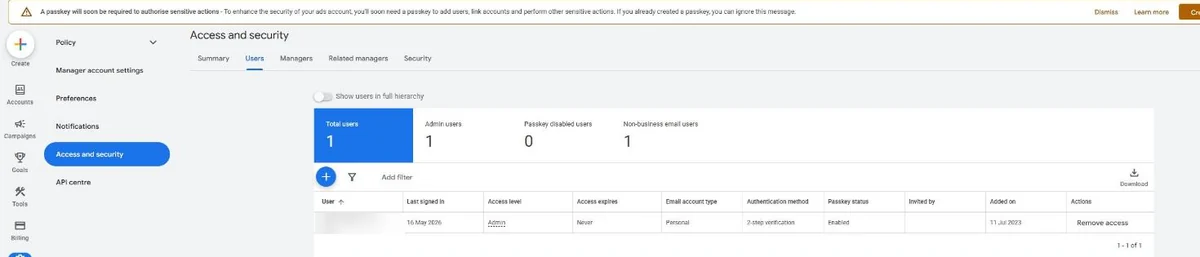
That banner across the top is not boilerplate, either. Google is rolling out a passkey requirement for sensitive actions - adding users and linking accounts among them. If your onboarding process assumes a client can grant access from any device at any time, that assumption has a shelf life.
And a constraint worth planning around: only one manager account can hold ownership of a Google Ads account. If a client works with two agencies, decide up front which one holds it. The other can still be linked - up to 5 managers can directly manage one client account - but will hit walls on ownership-gated actions.
Access levels
On the client account, the levels are Admin (full control, including granting access and managing product links), Standard (edit campaigns, run reports), Read-only (view campaigns and use planning tools), Billing (view and edit billing information) and Email-only (receive notification emails and reports, cannot sign in).
On the manager account, they are Administrative (everything including hierarchy management - this is the level that links and unlinks client accounts), Standard (everything except hierarchy management), Read only, Email only and Billing.
Restrict Administrative on your MCC to a very small number of principals and ops staff. Standard is the default for media buyers: they can work in every linked client account without being able to restructure your book of business.
The client should keep at least one Admin of their own, ideally two.
Billing is a decision, not a detail
The payments profile determines who is financially responsible for the account. If you set up consolidated billing under your agency, your agency carries that exposure. Every account on one invoice must sit under one common paying manager on monthly invoicing, and only accounts in the same currency consolidate onto one invoice.
Decide deliberately. If the client should pay Google directly, leave their own payments profile on the account and take management access only.
Then, at offboarding, change the billing setup before unlinking, never after. If the account is on monthly invoicing and the manager being unlinked is the paying manager, the account stops serving after you unlink it. Unlinking a payments profile from a manager deactivates the billing setups of every account using it.
What breaks when you unlink
Two things degrade quietly:
A cross-account conversion tag stops recording conversions for clicks that happen after the unlink, though it keeps recording conversions from clicks that happened before, for the duration of the conversion window (typically 30 days). And shared remarketing lists relying on the manager's tag stop populating - ad groups targeting those lists and campaigns excluding them will stop running.
Before offboarding, migrate the client onto their own conversion tag and their own audience lists, verify data is flowing, and only then unlink. Expect a reporting discontinuity regardless.
Link failures you cannot resend your way out of
Most Google Ads linking errors are structural, not transient. Read the exact error rather than resending:
- Maximum 5 manager levels in a hierarchy.
- Maximum 5 managers directly managing one client account.
- A manager account can have only one manager linked directly above it.
- An account cannot be linked twice within the same hierarchy.
- Manager accounts sharing a client account cannot be part of the same hierarchy.
Separately, you can only have 20 pending link requests at once. Bulk-blasting customer IDs during pitch season will lock you out. Clear stale invites from Sub-account settings before sending more.
Expiring access ends at 11:59 PM in the account's time zone, not yours. If you are a UK agency on a US client account, your last working day may end earlier or later than you expect. Warnings arrive 7 days and 1 day before.
One more, increasingly relevant: Google is tightening domain requirements so that users on free email domains are blocked from sensitive actions, and adding users is one of those actions. Before onboarding, check which Google account holds Admin on the client's account. If it is a personal Gmail, get a corporate-domain account added as Admin first.
Google Analytics 4
GA4's access model has one rule that matters more than all the others.
Always grant at property level, never account level
Roles are inherited downward, and effective permissions are the most permissive role that applies. Google's documentation is explicit that you cannot grant fewer permissions at a lower level than were assigned higher up. Account-level Editor makes your agency Editor on every property in that account - including the client's other brands, which you were never engaged to touch.
The same applies to data restrictions: you can add them lower down but you cannot remove ones inherited from above.
The click path: in Admin, under Property, click Access Management, then the + button, then Add users.
The Admin screen makes the trap visible if you look for it. There are two separate access management entries - one under Account settings, one under Property settings - sitting a few centimetres apart and looking almost identical. The top one governs every property in the account.
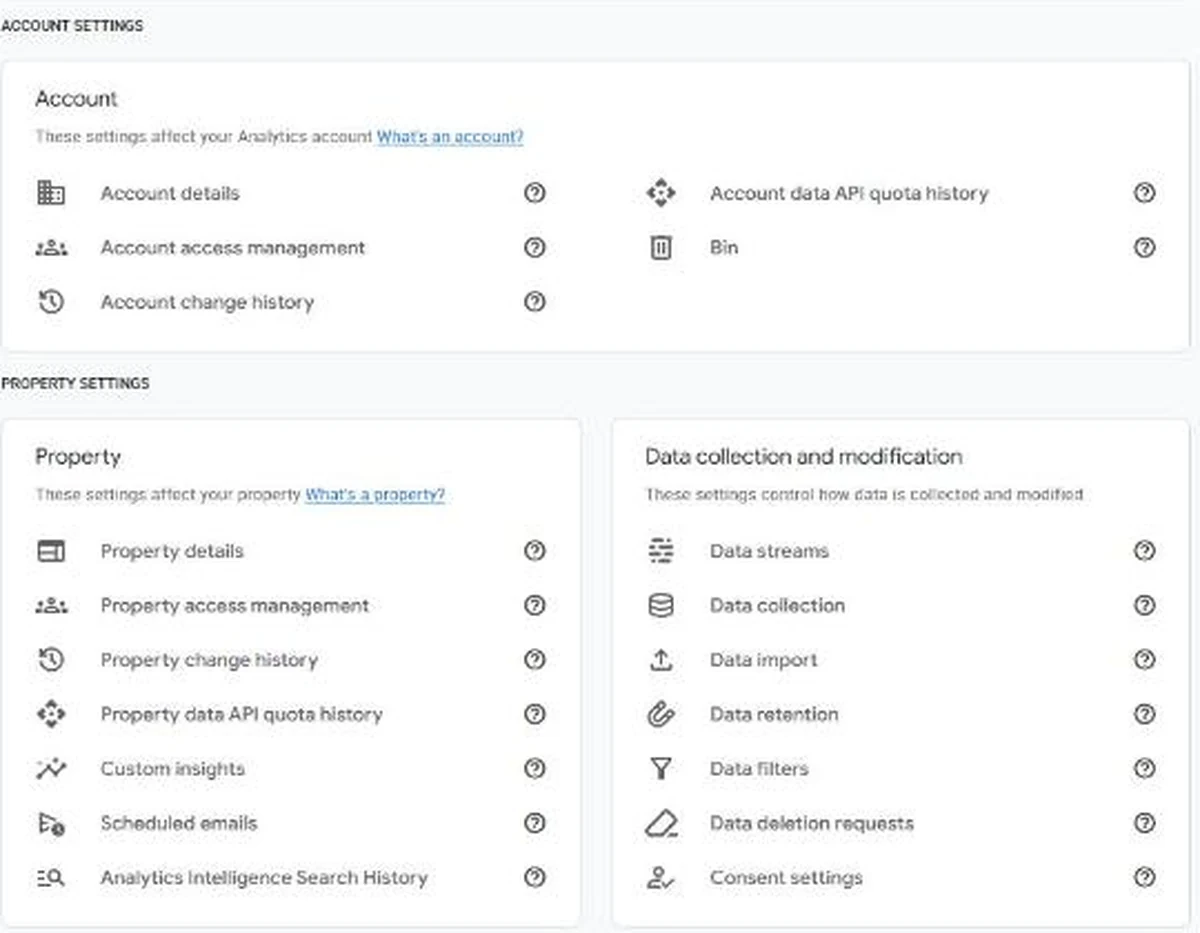
If your agency is already sitting at account level, do not try to reduce it per property. Remove the account-level row entirely and re-add per property.
The roles
- Administrator - full control including managing users. Avoid as a default.
- Editor - full control of property settings and configuration. Cannot manage users, but can view the user list across a property. This is the right default for an agency doing implementation and tracking work.
- Marketer - creates, edits and deletes audiences, events and key events; can import key events as conversions into Google Ads; can edit attribution-model settings. Worth reading twice, because the last two are powers some clients will not want delegated.
- Analyst - creates, edits and shares explorations; can request unsampled explorations on Analytics 360.
- Viewer - sees settings and data, and can change which data appears in reports by adding comparisons or secondary dimensions. Not a frozen read-only seat.
All of them appear on one panel, with Google's own one-line description of each - which is the fastest way to settle an argument with a client about what "Editor" actually lets you do.
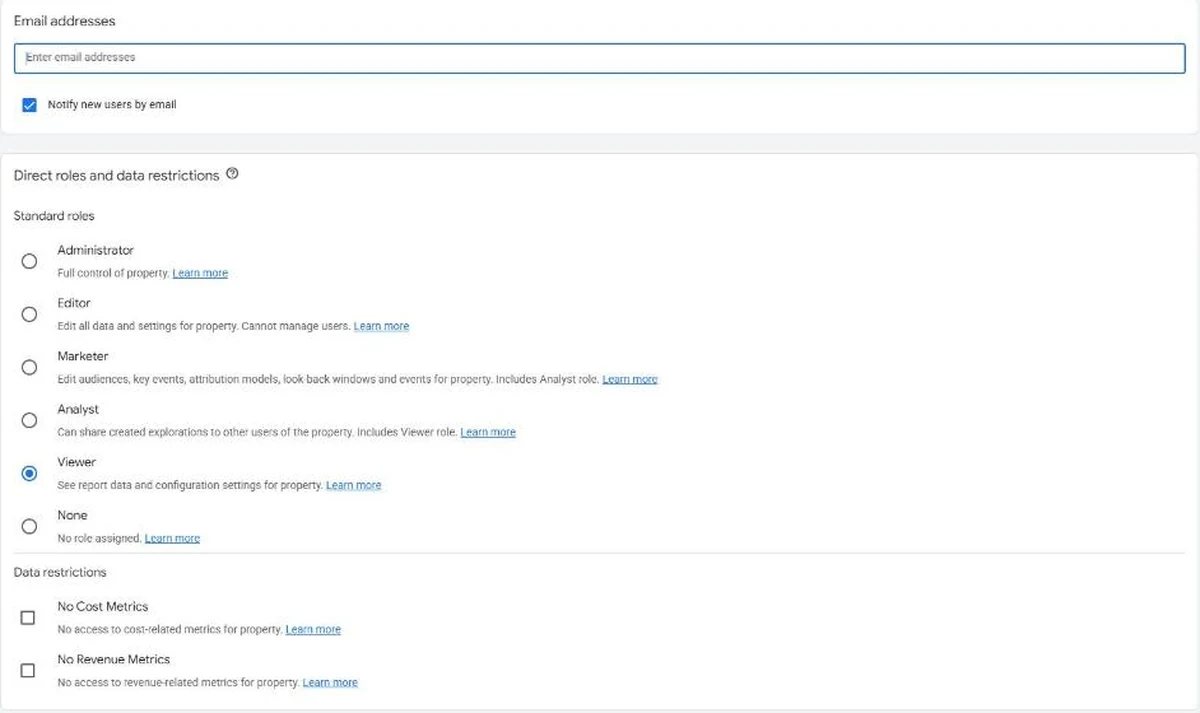
Layered on top are two data restrictions, No Cost Metrics and No Revenue Metrics. The first is occasionally right, usually when a downstream freelancer should not see spend. The second will break ROAS reporting for a performance agency, so think before accepting it.
Practical constraints
GA4 users are identified by Google accounts - Gmail or Google Workspace - so you cannot invite a generic role alias unless it is a real Google identity. Have each agency person supply a named Workspace address. Never share one login: that is precisely the failure this whole guide exists to prevent, and it destroys the audit trail.
Google documents up to 100 Analytics accounts per email address, up to 2,000 properties per account, and up to 50 data streams per property with a maximum of 30 app streams. Agencies hit the 100-accounts ceiling long before any per-property user cap, so use per-client identities and prune stale client accounts as engagements end.
One habit worth building: the access management list shows every user with their role in one view, so it takes about ten seconds to audit. Linked Google Ads accounts appear here as their own rows, which is a useful reminder that product links carry access too.
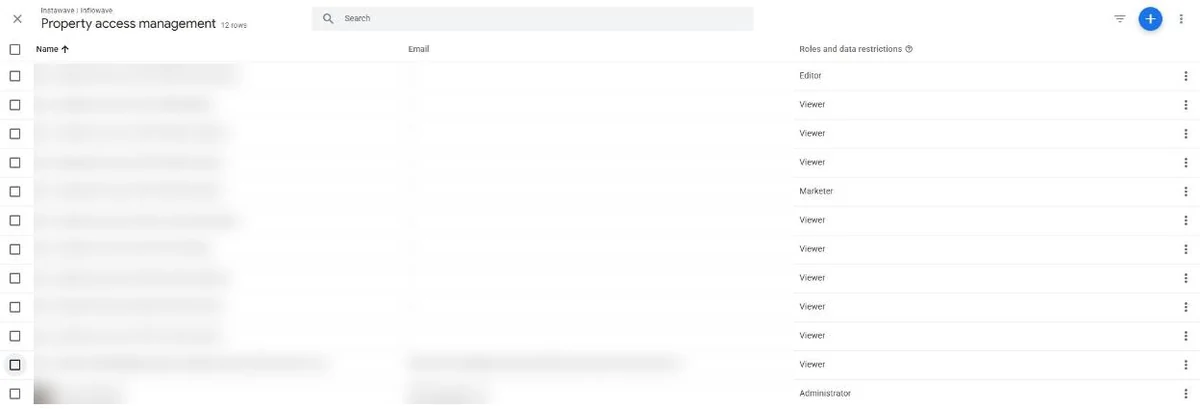
Finally: removal is immediate and you keep nothing. Export explorations and reports, or stand up a BigQuery export or Looker Studio extract that you own, before the final invoice.
Google Search Console
Search Console has an access model unlike anything else in this guide, because permissions and verification are two separate systems - and the second one is invisible from the user list.
The permission levels
Owner (verified) proved ownership with a verification token. Full control, and notably cannot be downgraded by anyone. The Change permissions option is inactive for verified owners; another owner can remove them but cannot reduce them to Full or Restricted.
Owner (delegated) has the same permissions but was granted by a verified owner rather than by a token. Access is contingent: if all verified owners are removed, delegated owners lose access after a grace period.
Full user can view all data, submit sitemaps, use URL Inspection, remove URLs, disavow links, file reconsideration requests, verify fixes, share report links and change property settings. Cannot add or remove users, and cannot link Google Analytics. This is the right default for an SEO agency - everything operational, no user administration.
Restricted user gets simple view rights and cannot submit sitemaps, disavow links or request reconsideration. Too limited for an agency doing actual work; fine for client stakeholders.
Associate can take certain actions on behalf of the site or access certain data but cannot access Search Console directly. Not a route for agency access.
All of these, including Owner, are granted from the same Add user dialog in Settings, Users and permissions. There is no separate control for adding a delegated owner.
The three verification traps
Removing an agency's user row does not remove a verified owner's access. Verified ownership comes from a token - an HTML file, an HTML tag, a DNS record, or a Google Analytics or Tag Manager link - not from the user list. When a verified owner is deleted, their tokens remain unless manually removed, and Google states the removed owner will be able to re-verify ownership if they choose to.
On offboarding, go to Settings, Users and permissions, Unused ownership tokens, and delete every one: remove the HTML file, strip the HTML tag, delete the DNS TXT record, revoke the GA or GTM access backing it.
Deleting the last verified owner silently kills everyone's access. A property must have at least one verified owner or no users have access at all. Make sure the client holds a verified-owner token of their own - ideally a DNS record on a Domain property - before you touch anything. Never let the agency be the only verified owner.
Verifying via Google Analytics or Tag Manager makes your Search Console access hostage to your GA/GTM access. That method requires edit rights on the GA property stream or Publish/Admin on the GTM container. Lose those and your Search Console ownership silently expires. Prefer a dedicated HTML file or DNS record, or hold two methods so one failing does not drop you.
Domain properties need DNS
A Domain property requires DNS record verification, unless the property is on a Google product such as Blogger or Google Sites. HTML file upload, HTML tag, Google Analytics and Google Tag Manager are all URL-prefix only. If a client cannot get you a DNS change, you are on a URL-prefix property whether you like it or not.
One error you will meet: "This user may only be added as Owner." That means the person already owns a containing property - typically the Domain property - so they hold implicit owner rights on the child. Add them as Owner on the child, or manage permissions at the Domain property level instead.
Google Tag Manager
GTM has the highest blast radius of anything in this guide. It is code on the client's website.
The client should create the GTM account. Google's guidance is explicit that the organisation whose tags are being managed should create the account, and there is no self-service ownership transfer. If an agency already owns a client's container, add a client Google account as account Administrator first, then remove the agency admins - Tag Manager will not let you remove all admins, so the order matters.
Permissions come in two layers.
Account level: User (view basic account information; cannot create containers or modify permissions) and Administrator (create containers and modify permissions for accounts and containers). Your agency should sit on User at account level. All real capability should come from container permissions. Keep Administrator with the client, and make sure at least two active administrators exist - if an account or container has no admin it is automatically deleted, with remaining read users given 30 days to export from the trash.
Container level: No access (the container is not even listed), Read (browse tags, triggers and variables), Edit (create workspaces and make edits), Approve (additionally create versions and act on approval requests) and Publish (full rights including publishing).
The best default for an agency working under client sign-off is Edit: you build in a workspace, and the client's Publish user ships it.
But agree the workflow explicitly, because Edit does not mean live. An agency on Edit can build everything and nothing ships until someone with Approve or Publish acts. If no named client-side publisher is actually available, tagging work piles up silently in unpublished workspaces for weeks.
Use No access to fence your agency out of the client's other containers when the account holds several.
Access can only be delegated to Google accounts, so collect your team's Google addresses during onboarding rather than work aliases that may not be Google accounts.
TikTok
TikTok Business Center is the agency-correct container, and it has a two-layer permission model that trips up almost everyone on their first onboarding.
The two layers
Inviting someone to your Business Center gives them zero access to any ad account. Business Center membership (Admin or Standard) and asset access are separate systems.
After inviting, you must complete the grant: Users, find the member, Grant access in the Action column, select the accounts and assets, and save. Treat an invite without a grant as an unfinished onboarding - it is the single most common reason a new media buyer "has access" and cannot see anything.
Business Center roles
Admin has full access to all system functions: member and partner management, creating accounts, asset transfers, business verification, assigning permissions, requesting TikTok account access, transferring ad accounts, and 2-step verification settings. Only Admins can add partners, so an agency needs at least two - typically two principals plus a backup.
Standard members work only on the accounts and assets specifically granted to them. This is the default for media buyers, analysts and freelancers.
Finance capability is a separate advanced role added on top of Admin, in two flavours: one that can view and manage balances, billing groups and invoice payment, and one that is view-and-download only for transaction histories, invoices and rebates. TikTok's own help pages are inconsistent about the exact casing of these role names, so read the live dropdown rather than trusting any written guide, including this one. Most agencies should not hold the manage-level finance role on client-owned accounts at all.
Asset-level access on ad accounts
Three levels: Admin (manage finances, settings and permissions; create and edit campaigns; view performance), Operator (manage finances, create and edit campaigns, view performance - but cannot manage settings or permissions) and Analyst (view ads and performance data only).
Operator is the right default for a media-buying agency. Full campaign control without the power to reassign permissions.
Note that an access-level Admin is still not the owner. Only the ad account owner can remove a Business Center's access to it - which means if your agency's Business Center is the owner, the client cannot cut you off themselves. Verify who the owner is at contract signing.
TikTok account access for Spark Ads
To run Spark Ads off a client's organic posts you request access to their TikTok account. The permission levels are Deliver ads - advertising only, authorising a user or ad account to use the account's identity and posts for paid campaigns - and Manage account, which includes everything in Deliver ads plus interacting with the organic presence: replying to comments, sending DMs, managing the account.
Ask for Deliver ads unless you are contracted to run organic too. It is the specific, narrow permission that replaces "can you send me the TikTok login."
Navigate via the left menu: Accounts, then TikTok accounts.
Partner relationships and offboarding
The Business-Center-to-Business-Center partner relationship is the agency-correct structure: you see and work on the assets the client's Business Center has shared, at whatever per-asset level was assigned, from inside your own Business Center.
When it ends, sequence it carefully, because revoking access will immediately pause any active ad campaigns run by that partner. That is an automatic pause, not a risk to manage. Order of operations:
- Client adds their own admin to every ad account.
- Export reports and creative.
- Pause or reassign any Spark Ads campaigns using the client identity.
- Only then remove the partner.
Two more things to plan around:
Never transfer a client's ad account into your Business Center. TikTok states you cannot reverse the transfer once complete, and recommends only transferring accounts owned and used by your own business. Use Request Access or the partner flow instead. If you have already made this mistake, plan the hand-back at offboarding and expect to involve your TikTok representative.
2-step verification enforcement cascades. Once an admin turns it on for the Business Center, admins or all members will also have to enable it to get in. Announce it and enrol every freelancer before flipping it to all members.
The full agency walkthrough - the two-layer permission model, the media agency partnership, the irreversible transfer and clean offboarding - is in our TikTok Business Center guide. If a client's TikTok account is already restricted, see TikTok bans and appeals.
Finally, Business Center type and business information are effectively permanent - you pick "I am an agency" or "I am an advertiser" at creation and it drives the Partners interface you get. Create it deliberately, with the correct legal entity name, timezone and currency.
LinkedIn's access model is three separate systems that people consistently mistake for one.
Page admin roles live on the Page under Settings, Manage admins. Ad account roles live in Campaign Manager under Account Settings, Manage access. And paid media admin roles are granted on the Page but only take effect in Campaign Manager. A member can hold one Page admin role and more than one paid media admin role at the same time.
Page admin roles
There are four: Super admin (everything, including adding and removing admins, editing Page information and deactivating the Page), Content admin (create and manage posts, events and jobs), Curator (create recommended content including the My Company tab, and view and export Page analytics) and Analyst (monitor performance through analytics).
Ask for Content admin for organic Page management. Leave Super admin with the client - a Page must always retain at least one, and it should be theirs.
Curator has eligibility conditions worth knowing: it is only available on Pages with company type "public" and more than 11 employees, and not on Showcase Pages.
Paid media admin roles
These are the ones that cause the mystery failures.
Sponsored Content poster lets you create Sponsored Content ads on behalf of the organisation and sponsor organic posts in Campaign Manager. This is mandatory for any paid social agency - ads will not build without it even with full ad account access. If your ads will not build, this is almost always the missing piece, not the ad account role.
Lead Gen Forms manager downloads leads received from Lead Gen Forms created in Campaign Manager. Without it, lead delivery quietly fails on your side. Landing Pages manager creates and edits LinkedIn Landing Pages.
To prompt the client for Sponsored Content permission from inside Campaign Manager: on the Ads in this ad set page, click the question icon to the left of the Create new ad(s) button, then click Request access. The request goes to Page super admins or Sponsored Content poster admins.
Campaign Manager roles
Billing admin does everything an Account manager can plus changes billing details, and is the user who gets billed. Leave it with the client. Account manager views performance, creates and edits campaigns and ads, edits account data and manages user access - only account managers can add other users, so you need at least one and so does the client. Campaign manager creates and edits campaigns, ad sets and ads without user or billing rights, and is the right default for hands-on staff. Creative manager edits ads only. Viewer is read-only across performance and billing history.
Business Manager
LinkedIn Business Manager is the container layer, with Admin, Employee and Contractor roles. The Contractor role is genuinely useful: it distinguishes freelancers from permanent staff so your quarterly access audits are easy. LinkedIn recommends at least two admins so there is always an active one.
To request ad account access into your Business Manager: Ad accounts, the Add accounts dropdown, then Request access (CSV), download the request template, continue, upload the completed file. Account managers on the client's ad account receive an email asking them to approve - and it is auto-approved if the requesting Business Manager admin is already an account manager on it.
Note the ordering constraint: once an ad account has been claimed or added to a Business Manager, user access must be managed through Business Manager instead of Campaign Manager. Ask the client up front whether their ad account sits in one, so you do not spend an afternoon talking them through a screen that will not work.
Two LinkedIn traps
The direct add-user path in Campaign Manager requires an actual LinkedIn connection. You can only add members who are your 1st, 2nd or 3rd-degree connections. If your colleague does not appear in search, you are simply not connected. The Business Manager partner flow bypasses this entirely, since it works off Business Manager IDs.
LinkedIn also has a structural fragility worth planning around: a restricted personal profile can put a client's ad account on hold. See LinkedIn restrictions and holds.
You cannot unshare a LinkedIn asset yourself. LinkedIn's documentation states that to stop sharing an ad account, decrease a shared role or stop sharing a Page, you must contact support. Treat the role you assign at share time as effectively permanent for the duration of the relationship, share the minimum, and build the support ticket into your offboarding runbook rather than discovering it on the last day.
Pinterest, X, YouTube, Shopify and Klaviyo
The long tail, briefly - but each has one thing worth knowing.
Ad account permissions are granular: Admin, Campaign (singular - create and edit campaigns, manage conversion tags, view audiences, access reporting), Analyst (view reporting, edit custom reports, view conversion tags, view audiences), Audience, Finance (edit), Finance (read), and the catalog roles Catalogs, Catalog Admin and Catalog ad creator.
Campaign is the core agency permission. Take Finance (read) only if you reconcile spend, and never Finance (edit) unless you are the payer.
The commonly forgotten piece: organic Pinterest management is a completely separate Publisher permission on the profile, which lets you create, edit and organise Pins and boards, edit the profile, comment and schedule - without sharing login credentials. It grants nothing in campaigns or billing, and it is the one people forget to request.
X (Twitter) Ads
Access is granted at ads.x.com, not on X's help site: click the ads account name in the top-right corner, then Edit access to account, then Add access, enter the handle, choose the access level, then Save changes.
Levels are Account administrator, Ad manager, Campaign analyst, Organic analyst, Creative Manager and partner audience manager. Ad manager is the default for campaign staff.
For promoted-only posts there is a separate toggle, Can compose promotable posts, which appears only when the access level is Account administrator or Ad manager. It can never be granted to campaign analysts, organic analysts or partner audience managers.
YouTube
A Brand Account is not required for channel permissions, contrary to a lot of older advice. For a standard channel, go to studio.youtube.com, Settings, Permissions, then Invite. "Move Permissions" appears only for channels that are on a Brand Account, and is a one-time migration.
The Studio roles: Manager (view all data, manage permissions, edit channel details, upload and publish, moderate live chat, create posts - but cannot delete the channel), Editor and Editor (Limited) (identical, except Limited cannot access revenue data), Subtitle Editor, Viewer and Viewer (Limited).
Editor (Limited) is the best default for agency production staff: full publishing power, no revenue visibility.
Never take primary owner on a Brand Account. If the primary owner account linked to the channel is deleted, the channel goes with it. An owner must also have held the owner role for at least 7 days before becoming primary owner.
Shopify
Always use collaborator access, never a staff seat. Collaborators do not count towards the store's user limit, and you request only the permission sections you actually need.
From the Partner dashboard: Stores, Add store, store type Managed store, enter the store URL and the 4-digit collaborator request code, select your permission sections or Full access, add an optional message, then Request access to store.
Two constraints: a collaborator cannot access the Shopify POS app or the Point of Sale channel, and a person with collaborator access cannot also be a staff member.
Klaviyo
Owner must stay with the client - there is one per account, and it cannot be deleted without transferring ownership first. Admin edits account details, adds and deletes users, cancels subscriptions, creates private API keys and edits domain authentication.
Manager is the best agency default: access to all core features with some limits in flows, lists, segments and analytics, and - importantly - no ability to export recipient activity or active and suppressed addresses. Your agency gets full working access with no ability to walk off with the customer list, which is exactly the assurance a nervous ecommerce client wants to hear.
Scope contractors to Content Creator or Campaign Coordinator, and give client stakeholders Analyst.
The cross-platform cheat sheet
If you take one table from this guide, take this one. It is the permission level to ask for by default - the lowest level that lets an agency actually do the work.
| Platform | Ask for this | Not this | Why |
|---|---|---|---|
| Meta business portfolio | Partner access to your own portfolio | Being added as a person in theirs | Staff churn never touches the client |
| Meta ad account | Advertiser | Admin | Full campaign control, no payment-method rights |
| Facebook Page | Partial access (business tools only) | Full control | Full control can lock the client out |
| Google Business Profile | Manager | Owner or Primary owner | Manager does everything except remove people and delete the profile |
| Google Ads | Manager account link, Standard on your MCC | Individual email invites | One place to revoke a leaver |
| GA4 | Editor, at property level | Administrator, or anything at account level | Account-level roles cannot be reduced per property |
| Search Console | Full user | Verified owner | A verified owner cannot be downgraded, only removed |
| Google Tag Manager | Container Edit, account User | Account Administrator | Client keeps the publish trigger |
| TikTok ad account | Operator | Admin | Campaign control without permission management |
| TikTok organic account | Deliver ads | Manage account | Spark Ads without organic posting rights |
| LinkedIn Page | Content admin + Sponsored Content poster | Super admin | Ads will not build without the paid media role |
| LinkedIn ad account | Campaign manager | Billing admin | Billing admin is who gets charged |
| Campaign (+ Publisher for organic) | Admin | Organic is a separate permission people forget | |
| X Ads | Ad manager | Account administrator | Add the promotable-posts toggle if needed |
| YouTube | Editor (Limited) | Manager or owner | Full publishing, no revenue visibility |
| Shopify | Collaborator, scoped sections | Staff account | Does not consume a user seat |
| Klaviyo | Manager | Admin or Owner | Cannot export the customer list |
When onboarding stalls: "my client isn't the admin"
Every guide assumes the client is an administrator of everything they own. In practice, this is where onboarding actually dies. Four scenarios and what to do about each.
The person who set it up has left the company. Common on Google Business Profile and Facebook Pages, where a marketing coordinator claimed the asset on a personal account in 2019. On Google Business Profile, use the Request Access flow and start the 3-day clock. On Meta, if the Page is not in any portfolio, the client will need to establish Page access through someone who still has it, or work through Meta's own recovery routes. Start this on day one of onboarding, not week three, because both paths involve waiting.
The Page is a legacy standalone Page in no portfolio at all. The client needs to create a business portfolio and add the Page to it before partner access is even possible. Budget a call for this rather than an email.
The ad account is a personal ad account. This is the genuinely hard one. A personal Meta ad account outside any business portfolio has no partner-sharing mechanism. The client either creates a business portfolio and moves into a proper structure, or you are stuck. Do not solve this with credentials - solve it by fixing the structure, which the client needed to do anyway.
Nobody knows who has access. Before you request anything, ask the client to pull the current user list on each platform. Half the time this exercise finds a previous agency still holding admin. That is a conversation the client needs to have regardless, and running it before you onboard means it does not become your problem later.
The general principle: when a client cannot grant access, the answer is almost never a workaround. It is that their account structure is broken, and fixing it is part of the value you provide.
Never take the client's password
Somewhere in every onboarding, a well-meaning client will offer their login. It is worth having a settled, written position on this rather than deciding in the moment.
The argument, in the words you can put in a client email:
Sharing a password defeats your two-factor authentication. Whatever protection you set up on your account stops applying the moment someone else is typing the password from a different device.
It destroys the audit trail. Every action becomes attributable to you rather than to a named person at our agency. If something goes wrong - a campaign paused, a review reply deleted, a tag broken - nobody can establish who did it, including us.
It gives us far more than we need. Your personal Facebook profile, your saved payment methods, your other business assets, your unrelated accounts. We do not want that access and we should not have it.
It triggers security checkpoints. Logins from an unfamiliar device or location routinely get flagged, and the resulting lockouts cost more time than the delegation would have.
And it is unnecessary. Every access we need is available through a proper permission, granted by invitation or by ID. Nothing in this guide requires a credential.
Make the refusal a written policy stated in your onboarding document, not a preference you exercise when convenient. It is also, quietly, a differentiator: "we will never ask for your password" is a line most agencies cannot say.
When there is genuinely no delegation mechanism
There are still corners of the martech stack where a vendor offers no user management - usually smaller tools, sometimes legacy platforms. When you hit one:
Document why there was no alternative. Use a shared vault with a dedicated, scoped item rather than a spreadsheet or a Slack message.
Understand what your vault permissions actually do. In 1Password, for example, "Allow Managing" lets a member grant and revoke access to a vault, change permissions and delete the vault - but it explicitly does not include any item viewing or editing permissions. A person with Allow Managing cannot see the passwords unless they also have Allow Viewing. That is exactly what you want for an offboarding owner, and exactly the opposite of what most people assume the role does.
And most importantly: revoking vault access is not the same as revoking access. If someone had the credential in their clipboard, in their browser, or in their memory, removing them from the vault changes nothing. Every departure - a staff member leaving, a client ending - is a rotation trigger. The credential gets changed, not just unshared. Check group membership after removal too; lingering access is usually inherited from a group rather than assigned directly.
The access register
Once you are past a handful of clients, memory stops working and the register becomes the system.
One row per asset, not per client. Each row records: the platform, the specific asset, the permission level held, which named agency identity holds it, who on the client side is the admin, the asset owner, the date granted, the date last verified, and the offboarding action required.
That "asset owner" column is the one that earns its keep. It is the difference between discovering an ownership problem at a quarterly review and discovering it during a notice period.
Reconcile it against the platforms on a schedule. Standard security guidance (CIS Control 5.1) is to validate that all active accounts are authorised on a recurring schedule, at minimum quarterly. Pull the actual user list from each platform and diff it against your register. The diff is where the surprises live: the freelancer from last spring, the previous agency, the analyst who moved teams.
When a team member leaves your agency
This is the scenario nobody plans for and every agency eventually faces. A media buyer resigns, and their access is scattered across forty client accounts on six platforms.
If you have used the container patterns throughout this guide - manager account links, Meta partner access, TikTok Business Center, LinkedIn Business Manager - this is one revoke in each container, and it cascades. If you have used individual email invites, it is a manual sweep across every client, and you will miss some.
That is the real argument for containers over invites. Not tidiness. Blast radius on the day someone leaves badly.
Behind SSO, disabling the directory account handles most of it in one action. That is worth the setup cost by roughly your tenth client.
The offboarding runbook
Nobody writes this part, which is why it goes wrong. The ordering is not negotiable - every step depends on the one before it.
- Migrate or confirm ownership first. Anything created in your container that should be the client's gets moved before anything is revoked. Once your access is gone you cannot perform the transfer.
- Export everything you need. Reports, explorations, Search Console performance data, creative, campaign history. All of it disappears the moment access is revoked, and no platform gives a departing agency a residual copy.
- Fix billing before unlinking. On Google Ads, change the billing setup while still linked. Unlinking a paying manager on monthly invoicing stops the account serving.
- Migrate tracking dependencies. Move the client onto their own conversion tags and audience lists, and verify data is flowing, before you cut the manager link.
- Sequence the platform-specific pauses. On TikTok, revoking a partner immediately pauses their active campaigns - reassign or pause deliberately first.
- Revoke container links. Partner access, manager account links, Business Manager sharing.
- Remove named users. Individual invites on every platform.
- Delete verification tokens. Search Console ownership tokens, HTML files, DNS records, HTML tags. This step is invisible and permanently skipped.
- Rotate any shared credentials. Not unshare - rotate.
- Revoke API keys and integrations. System users, private API keys, third-party tool connections.
- Return or delete personal data. Agree return-versus-delete in writing, execute it including backups per your retention policy, and record what was done and when.
- Verify by attempting access. Try to log in. The only proof that revocation worked is failing to get in.
Send the client a written offboarding confirmation listing what was revoked, what was transferred and what was returned or deleted. It costs ten minutes and it is the last impression you leave.
Data protection: you are probably a processor
If you touch a client's analytics, customer lists, lead data or CRM records, you are almost certainly acting as a data processor on their behalf under GDPR, with the client as controller. That has contractual consequences that most agencies have never papered.
Article 28(3) requires a contract that stipulates the subject matter and duration of the processing, its nature and purpose, the type of personal data and categories of data subjects, and the obligations and rights of the controller. Note that wording carefully - it is the controller's obligations and rights that the contract must set out, not both parties'.
The sub-processor rule is the one agencies breach without noticing. Where a processor engages another processor, the same data protection obligations as set out in the contract between the controller and processor must be imposed on that other processor. Your freelance media buyer, your offshore reporting team, your SaaS stack - they are sub-processors. Maintain a sub-processor list per client, contract every freelancer with flow-down terms, and put them in the access register with the same start and stop dates and revocation triggers as employees.
Add an explicit data disposition step to your offboarding, agreed in writing. "We deleted it" with no record is not a defensible position.
This is general information rather than legal advice, and your obligations vary by jurisdiction and by what data you actually touch. If you handle anything sensitive at volume, get it reviewed properly once - it is cheaper than the alternative.
Platform-by-platform guides
This page is the overview. Each platform below has its own guide with the exact steps, the permission level to ask for, and the traps that only surface when the relationship ends.
- How to Create Business Manager on Facebook - Create a Facebook Business Manager (now a Meta business portfolio) at business.
- Business Portfolio Explained - A business portfolio is the Meta container that owns your Facebook Page, Instagram account, ad account and pixel, and decides who can touch them.
- Facebook Ad Account Access - How to get access to a client's Facebook ad account without owning it, which permission level to ask for instead of admin, and how to create a new ad account so the client keeps it when the relationship ends.
- Meta Partnership Ads - Meta partnership ads run from a creator's or partner's handle out of your ad account.
- Google Ads Manager Account (MCC) - A Google Ads manager account (formerly MCC) lets an agency access client accounts from one login.
- LinkedIn Business Manager - How agencies get access to a client's LinkedIn Page and ad account, which of the three separate LinkedIn permission systems each step lives in, the exact role to ask for, and why you cannot unshare a Page or an ad account yourself when the contract ends.
- Client Onboarding Software - Most client onboarding software solves the paperwork and leaves the hard part alone: getting into the client's ad accounts, analytics and Business Profile at the right permission level.
Frequently asked questions
How do I give someone access to my Facebook Page?
Switch into the Page, click Manage, then Page Access. Next to People with Facebook access, click Add New, then Next. Enter the person's name or email, choose the access level, click Give Access, enter your own Facebook password and confirm. They must accept the emailed invitation before access is live. For an agency, prefer partner access at the portfolio level instead - it survives staff changes on both sides.
Why can't I add an admin to my Facebook page?
The most common reasons: you do not have full control of the Page yourself; you are trying to grant access to a "gray account", which Meta does not allow; the recipient has not accepted the emailed invitation yet; or the Page sits in a business portfolio and access needs to be managed there rather than on the Page.
Can I request access to a standalone Facebook Page?
Yes, through Settings, Accounts, Pages, Add, Request shared access to a Facebook Page. But you must already have a primary Page in your own business portfolio before the option will work.
How do I add a manager to my Google Business Profile?
Open Business Profile settings, then People and access, click Add, enter the person's Google account, choose Manager, and send. Then check the People and access page again to confirm they have moved out of PENDING.
What is the difference between an owner and a manager on Google Business Profile?
A manager can do almost everything an owner can, including editing business information, posting, replying to reviews, managing photos and editing URLs. The only things a manager cannot do are add or remove users and remove the profile. For an agency, manager is the correct level.
Can there be more than one owner on a Google Business Profile?
Yes, a profile can have multiple owners, but only one primary owner, and only the primary owner can transfer primary ownership.
What is the 7-day restriction on Google Business Profile?
A newly added owner or manager must wait 7 days before they can manage all features - deleting or undeleting the profile, removing other owners or managers, or setting a primary owner. Do not confuse it with the separate 3-day window a current owner has to respond to a Request Access.
How long does a Google Business Profile access request take?
The current owner has 3 days to respond. If they do not, you can open the confirmation email, select View request, then Verify. Google notes the option to claim a profile is not always available.
How do I add someone to Google Analytics?
In GA4, go to Admin, then under Property click Access Management, click the plus button, then Add users. Enter their Google account email and assign a role. Always grant at property level, not account level.
Which GA4 role should an agency have?
Editor for implementation and tracking work. It gives full control of property configuration without the ability to manage users. Use Analyst for reporting-only engagements and Marketer for teams that need audience building without touching measurement config.
Should I link a manager account or just add my email to Google Ads?
Link the manager account. Individual email access survives staff leaving your agency and has to be cleaned up client by client. With a manager link, revoking someone in your own MCC removes them from every client at once.
What's the difference between TikTok Business Center member access and partner access?
Member access adds a person to your Business Center. Partner access connects two Business Centers so a client can share assets with your agency's. Members are your staff; partners are other businesses. And note that inviting a member grants no asset access until you complete the separate Grant access step.
Why don't my advertiser accounts show up when I try to share them?
Generally because the Business Center does not own them. Accounts owned by an individual user and merely linked to a Business Center behave differently from ones the Business Center owns. Check the ownership of the account before promising a client you can share it onward.
Why won't my LinkedIn ads build even though I have ad account access?
Almost always a missing paid media admin role on the Page - specifically Sponsored Content poster. Page access and ad account access are separate systems on LinkedIn. Request it from the Ads in this ad set page via the question icon next to Create new ad(s).
Do I need a Brand Account to give someone access to my YouTube channel?
No. Channel permissions work on standard channels: go to studio.youtube.com, Settings, Permissions, Invite. Brand Accounts have their own separate owner and manager model, and Move Permissions only appears for channels already on one.
What happens to my agency's access when a client leaves?
Everything granted through partner access, manager links or user roles disappears immediately and completely, and you retain no copy of anything. Export reporting, creative and campaign data before the final invoice, and keep your working files in your own systems rather than in the client's containers.
Bringing it together
Client access is not really an IT problem. It is a positioning problem. The agency that shows up with a structured access pack, asks for the minimum permission that does the job, never touches a password, and hands everything back cleanly at the end is signalling something about how it operates that no case study communicates as well.
The three habits that matter most:
Client owns, agency accesses. Every asset created in the client's container, every time, even when it costs you twenty minutes on day one.
Containers over invites. Manager accounts, business portfolios, Business Centers, Business Managers. One place to grant, one place to revoke, and a clean answer on the day someone leaves.
Verify, register, reconcile. Confirm every grant the same day, keep one row per asset, and diff it against the platforms quarterly.
Get those three right and access stops being the thing that eats the first three weeks of every engagement.
If you are managing conversations, leads and campaigns across a book of clients once the access is in place, that is what Inflowave is built for - every client's messages, leads and pipelines in one place, with per-client workspaces so your team sees only what they should. You can also look at how agencies structure the rest of the operation in our guides to white-label agency models and social media management tools.
\n## More on running the agency\n\nStart here: Marketing agency software - the whole stack, and what each piece is actually for.\n\n- White label software for agencies - reselling under your own brand.\n- What is white label software? - the plain definition.\n- GoHighLevel white label - what it includes and what it really costs.\n- Client onboarding checklist - the first two weeks, written down.\n- Client onboarding software - what agencies actually need from it.\n- Client offboarding checklist - the part nobody documents.\n- Client account access - getting into their accounts without owning the risk.\n- Agency SOP templates - the seven processes worth writing first.\n- How to start an SMMA - from zero to the first retainer.\n- Questions to ask a marketing agency - useful on both sides of the table.\n- Inflowave for agencies - one platform for every client account.\n
This is one stage of a bigger arc. How to grow a marketing agency covers the whole thing: finding prospects, winning clients, closing, onboarding, managing, reporting and scaling.